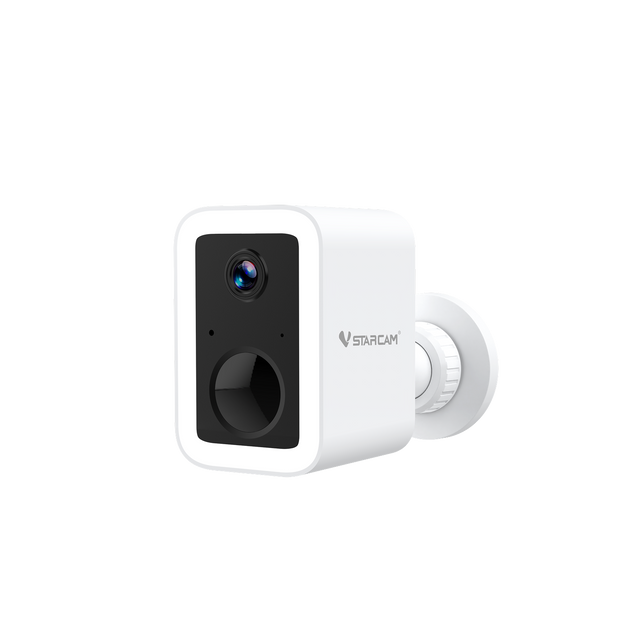
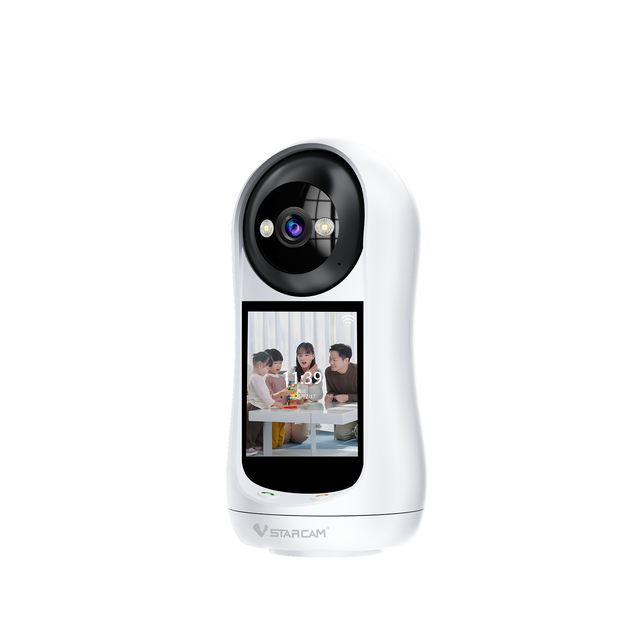
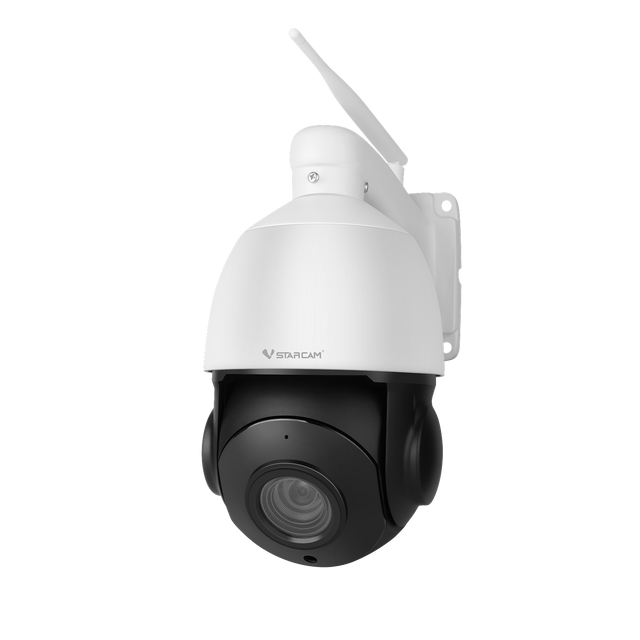
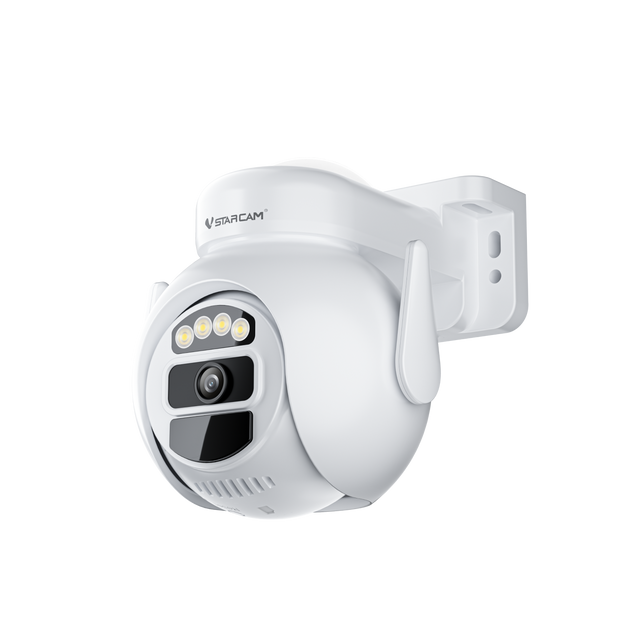
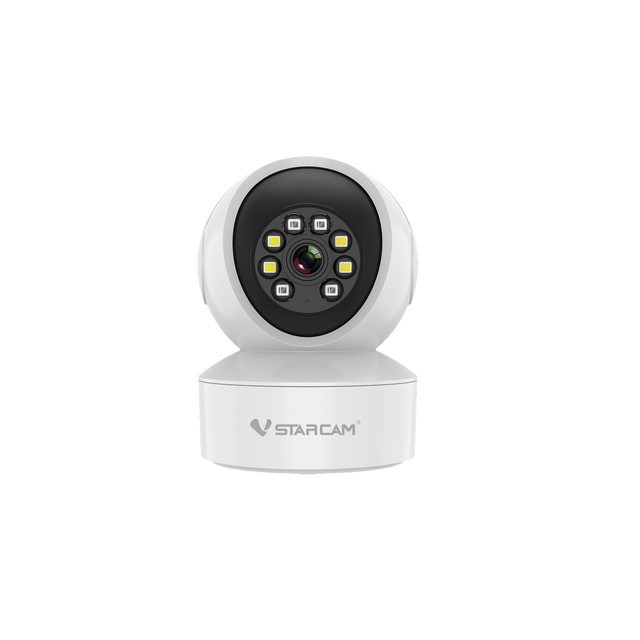
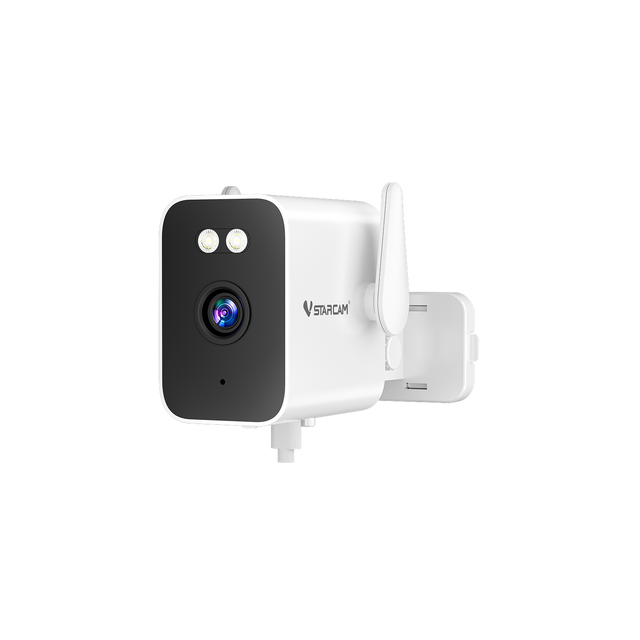
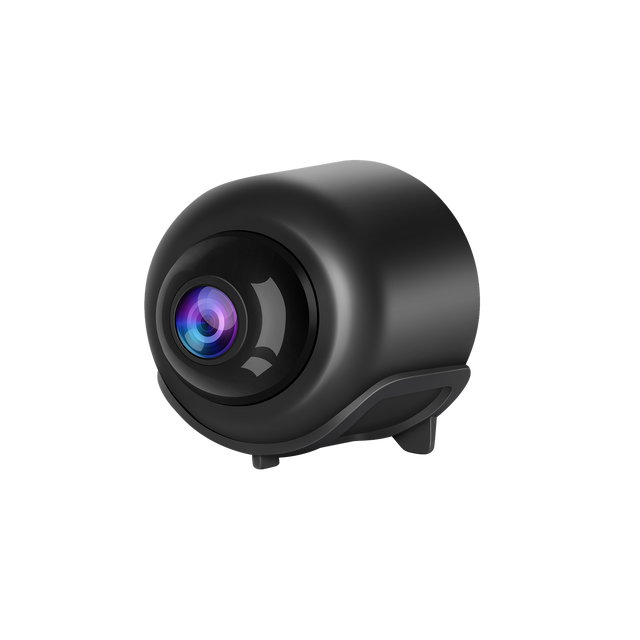
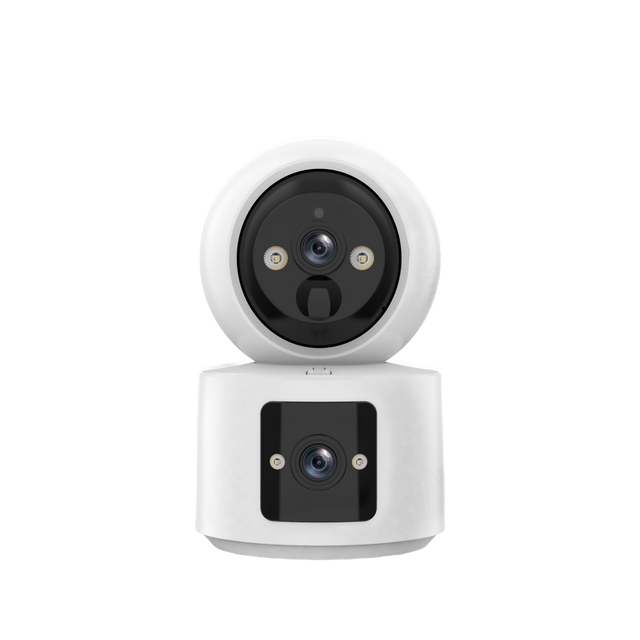
E30-4 | 4MP Multi-Lens PTZ Camera - Wire-Free Solar Power, Auto Zoom & 360° View

Vstarcam

E30-4 | 4MP Multi-Lens PTZ Camera - Wire-Free Solar Power, Auto Zoom & 360° View

$350.00

Plug Standard: EU Plug
TF Card: NONE
Pay with Ease American Express Apple Pay Google Pay Mastercard PayPal Shop Pay Union Pay Visa
Trusted Delivery

Why Choose Security Camera E30-4?

Why Choose Security Camera E30-4?

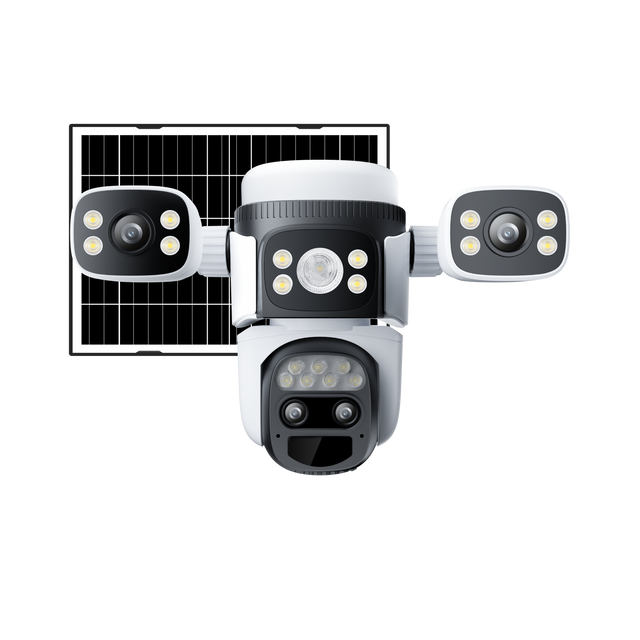
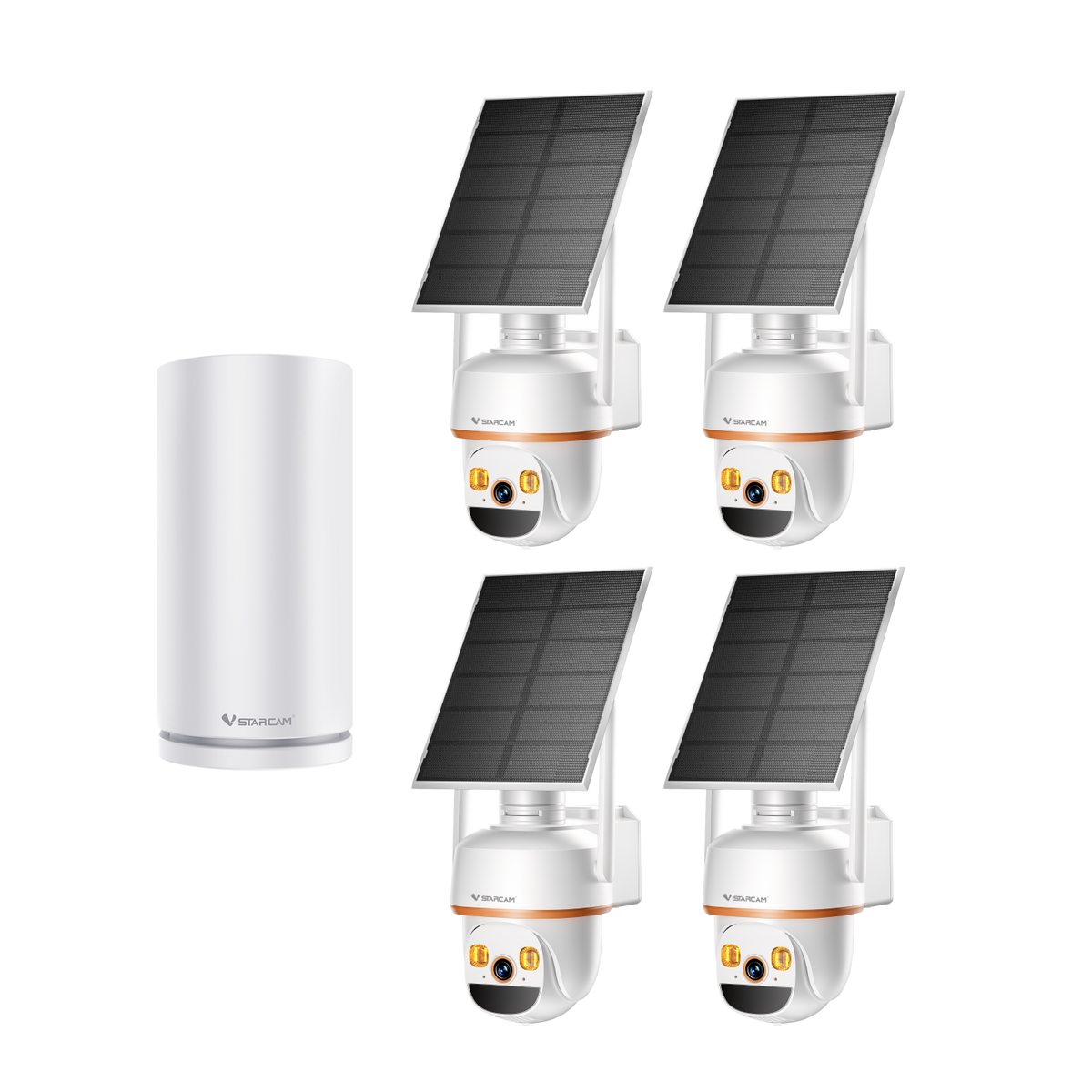
Four Lenses, Synchronized Views

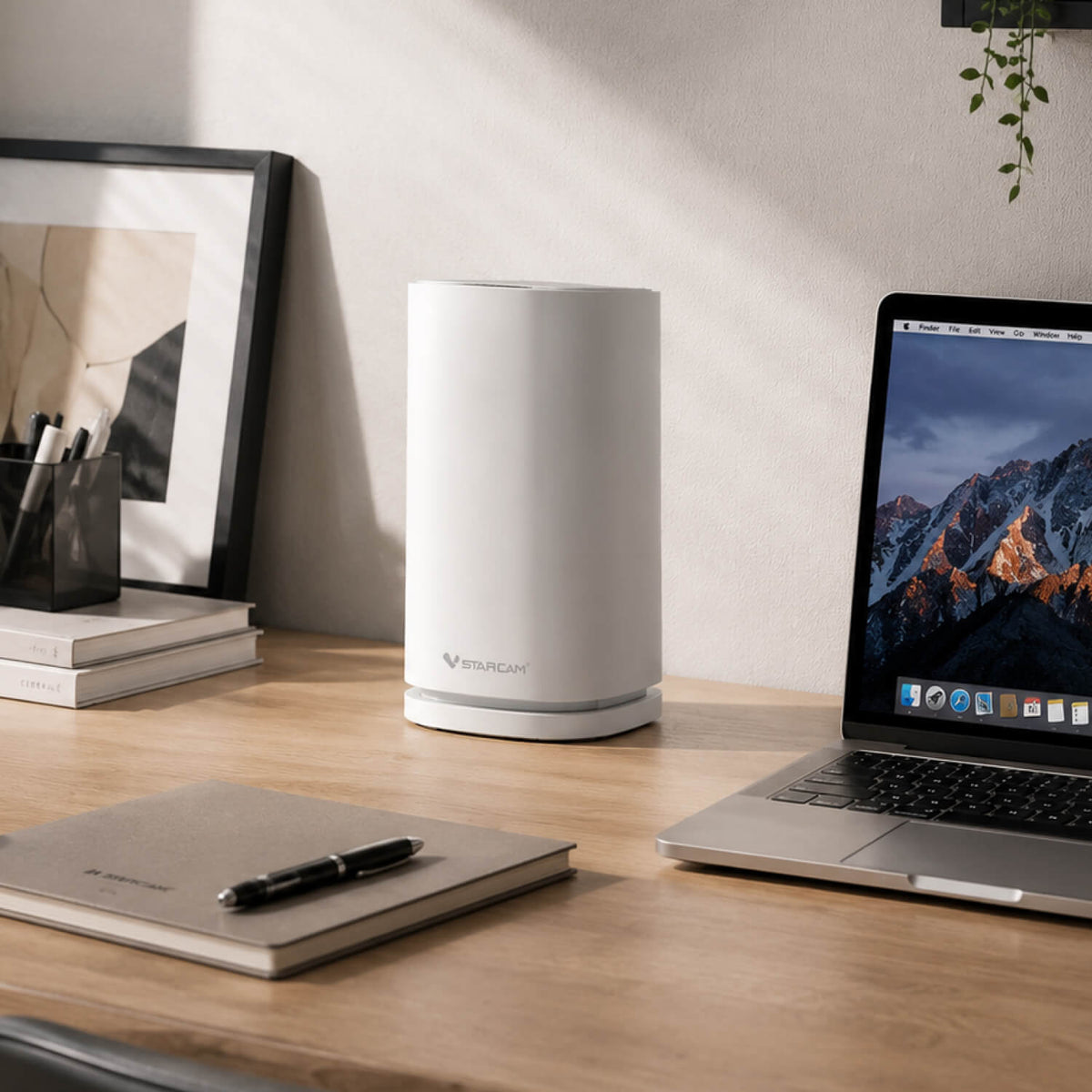
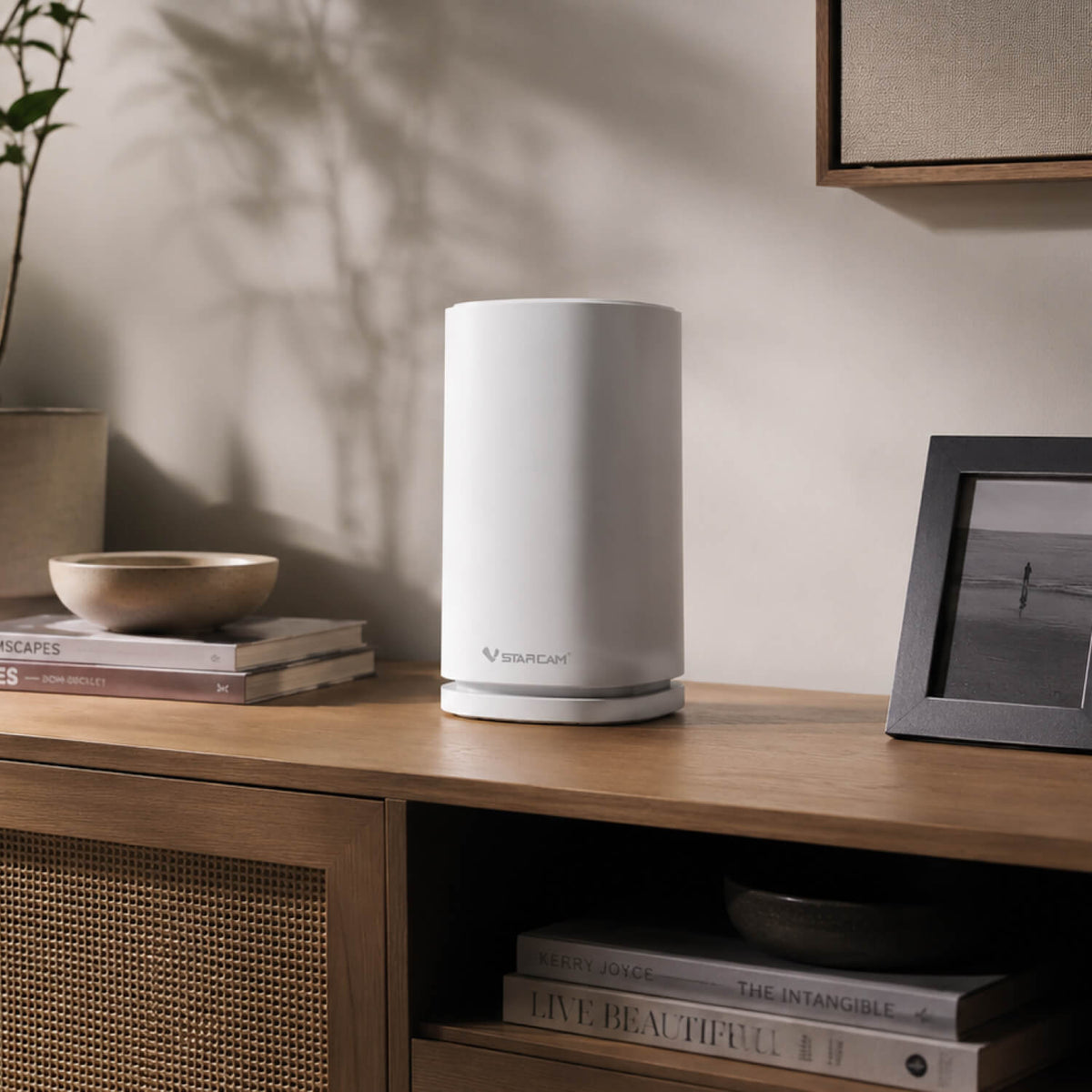
Four IP cameras cover the entire area with flexible deployment in key locations. A single NVR
unifies management, storage, and playback, creating an integrated security system.
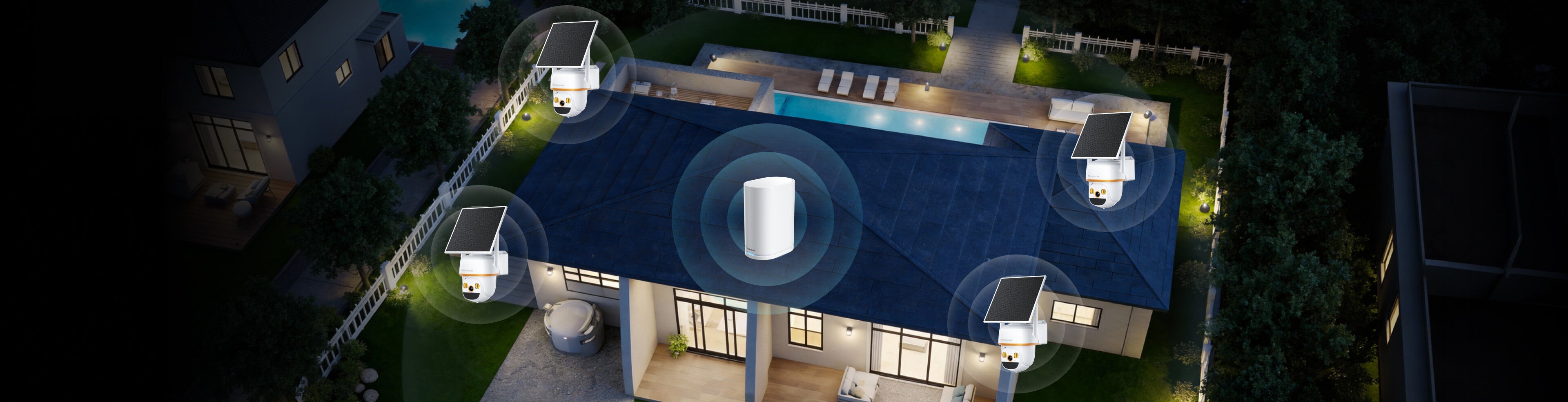
Four Lenses, Synchronized Views
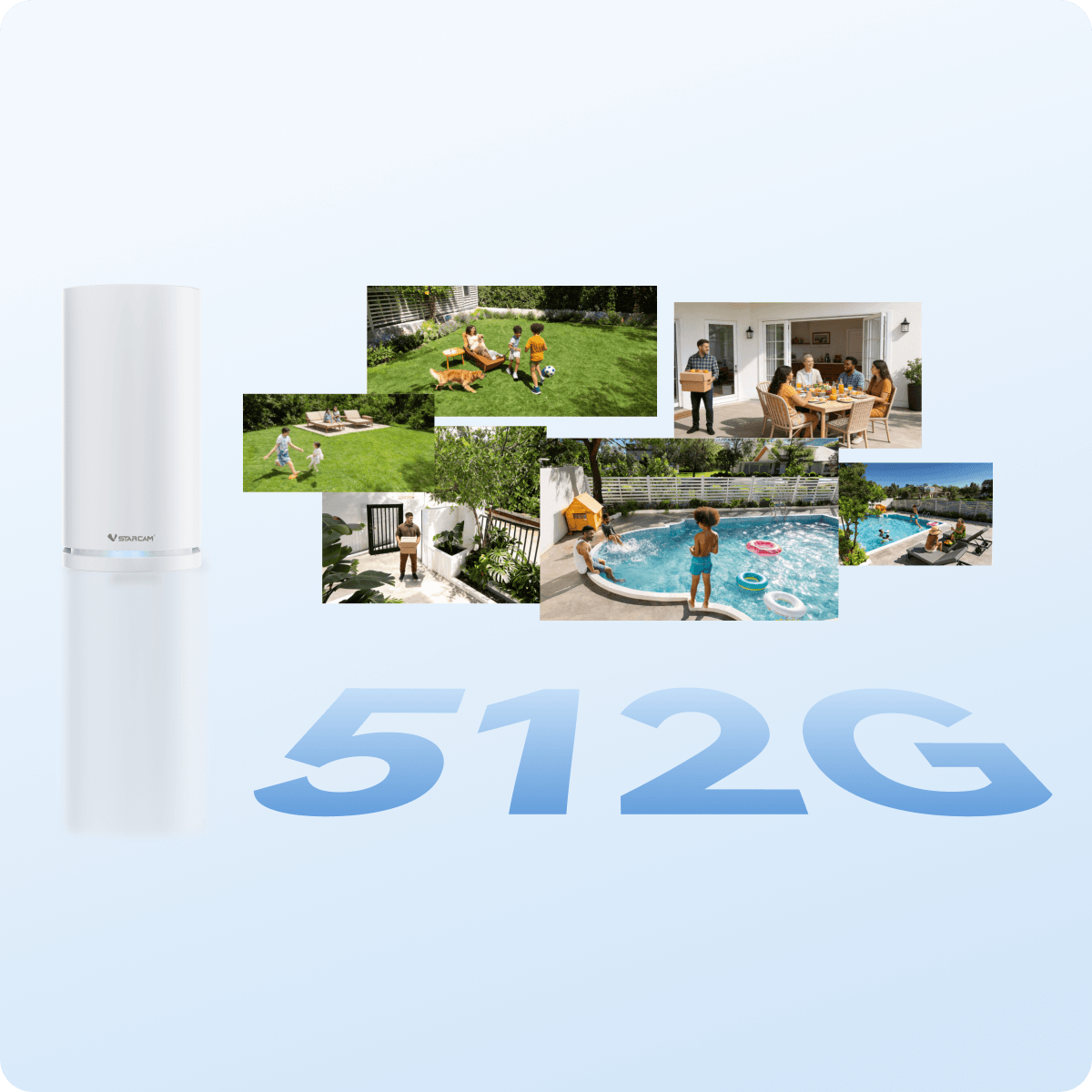
Massive Storage

Massive Storage

Supports local storage via TF card (up to
512GB) and encrypted cloud storage. All 4-
channel footage is saved locally for instant
historical review.

Four-Camera Coverage for a Fuller View

Connect up to 4 IPC cameras to cover different directions at the same time, making it easier to monitor large areas such as yards, farms, and open outdoor spaces.
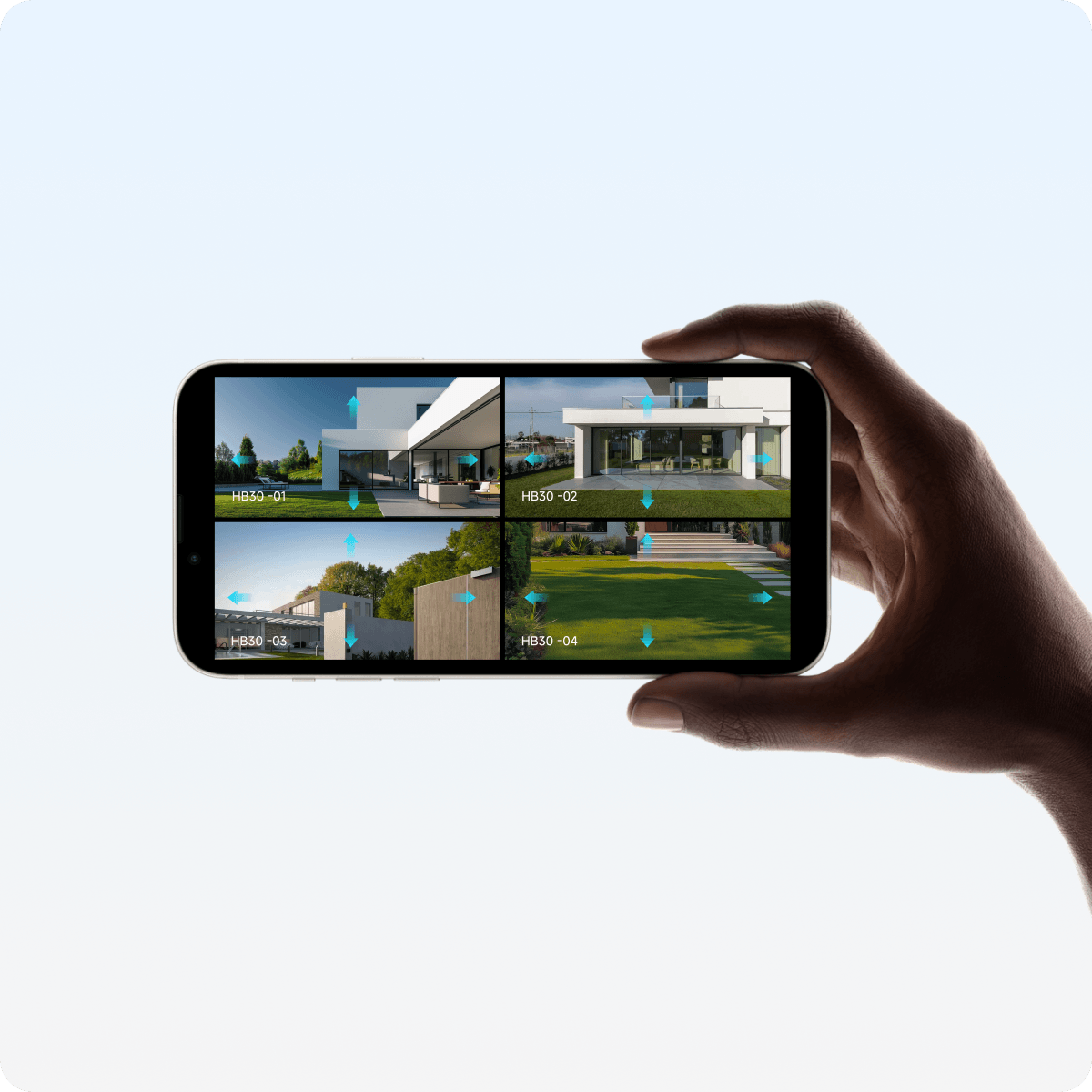
Four-Camera Coverage for a Fuller View
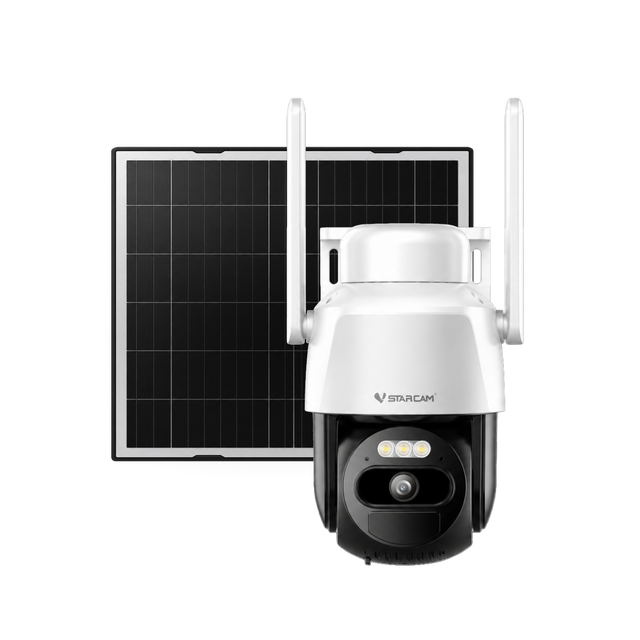
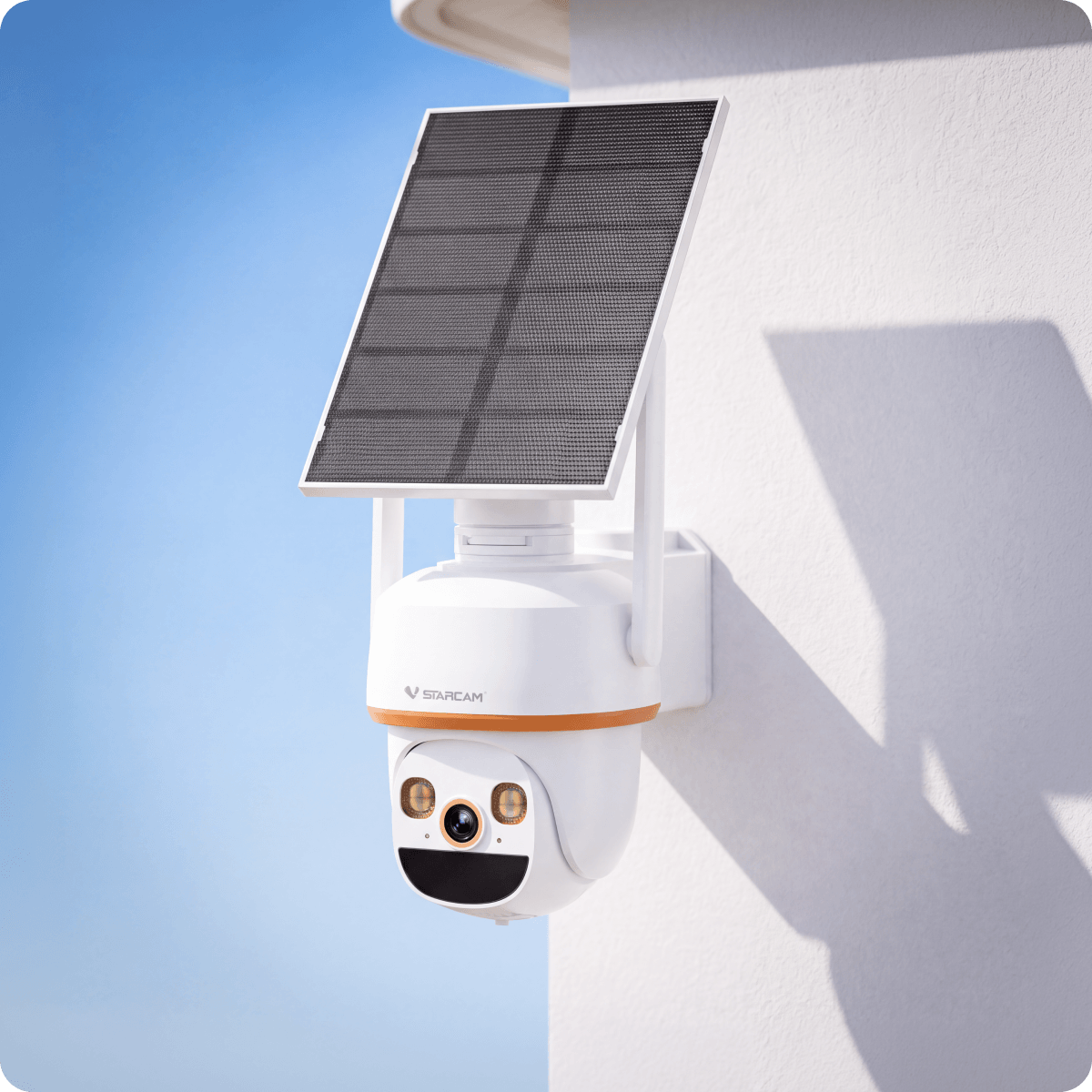
Long-Lasting Solar Connectivity

Long-Lasting Solar Connectivity

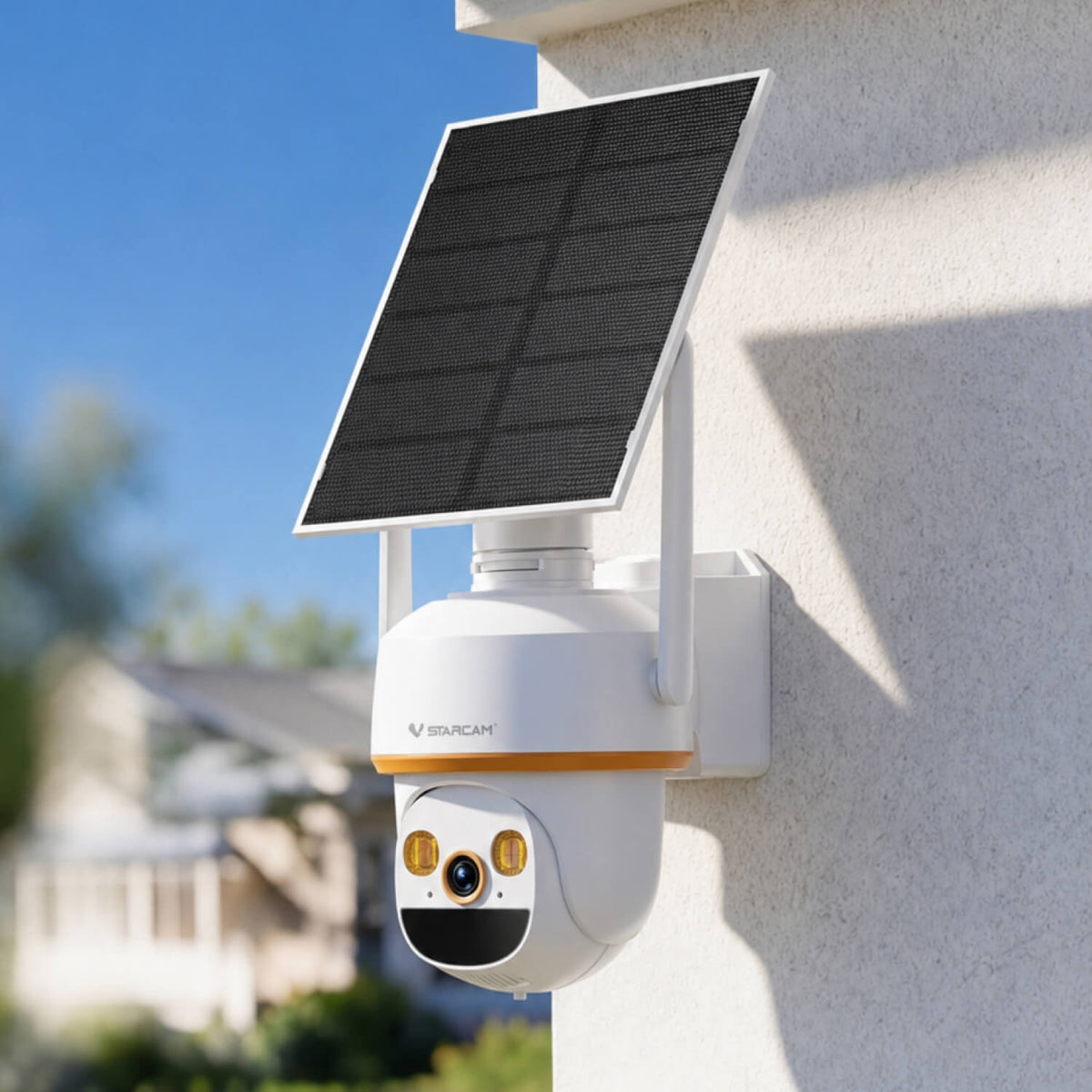
A large-capacity built-in battery works with
continuous solar charging and low-power
management to reduce frequent manual charging
and help maintain reliable operation in outdoor
environments.

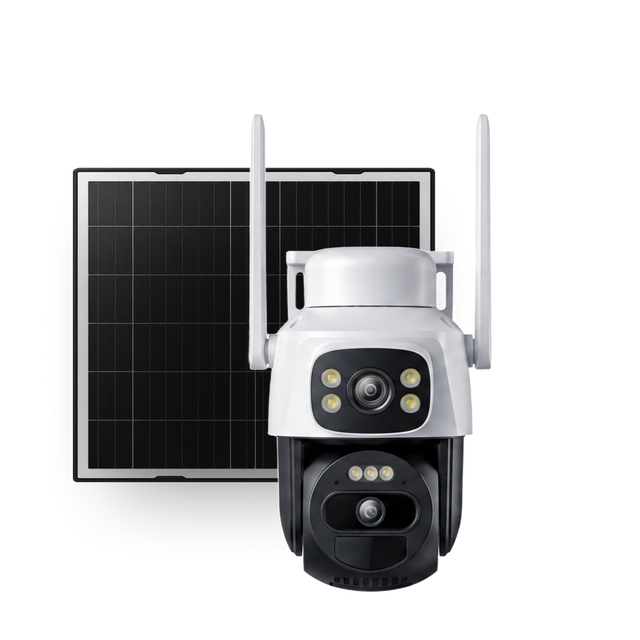
PTZ Auto-Cruise Coverage

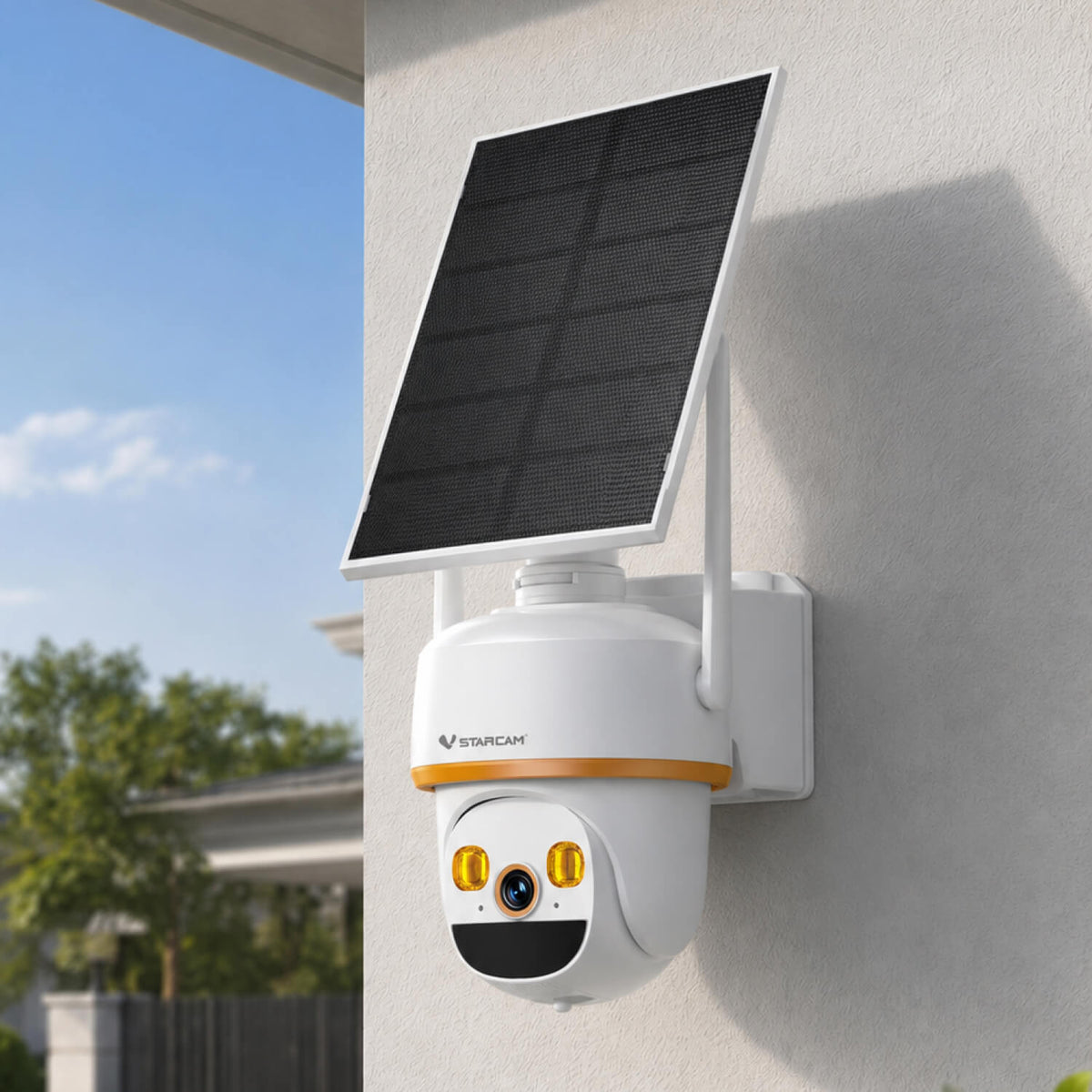
The PTZ camera rotates 330° horizontally and 90° vertically, allowing you to remotely control the
lens and scan key areas on a set cycle for wider coverage.

PTZ Auto-Cruise Coverage

Intelligent Human Detection

The intelligent human detection minimizes false alarms from animals, shadows, vehicles,or other irrelevant motion, ensuring you're only alerted when people are present.
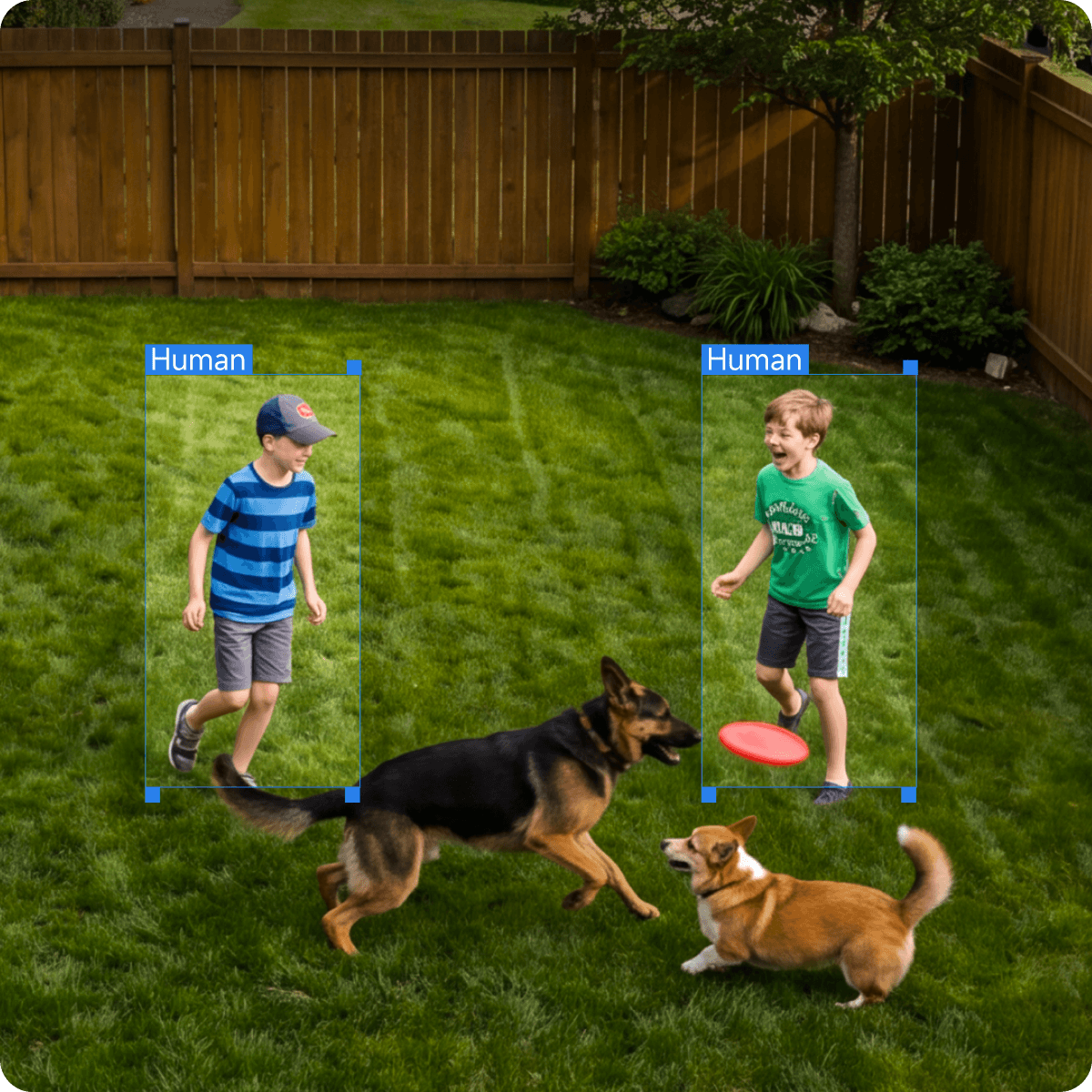
Intelligent Human Detection
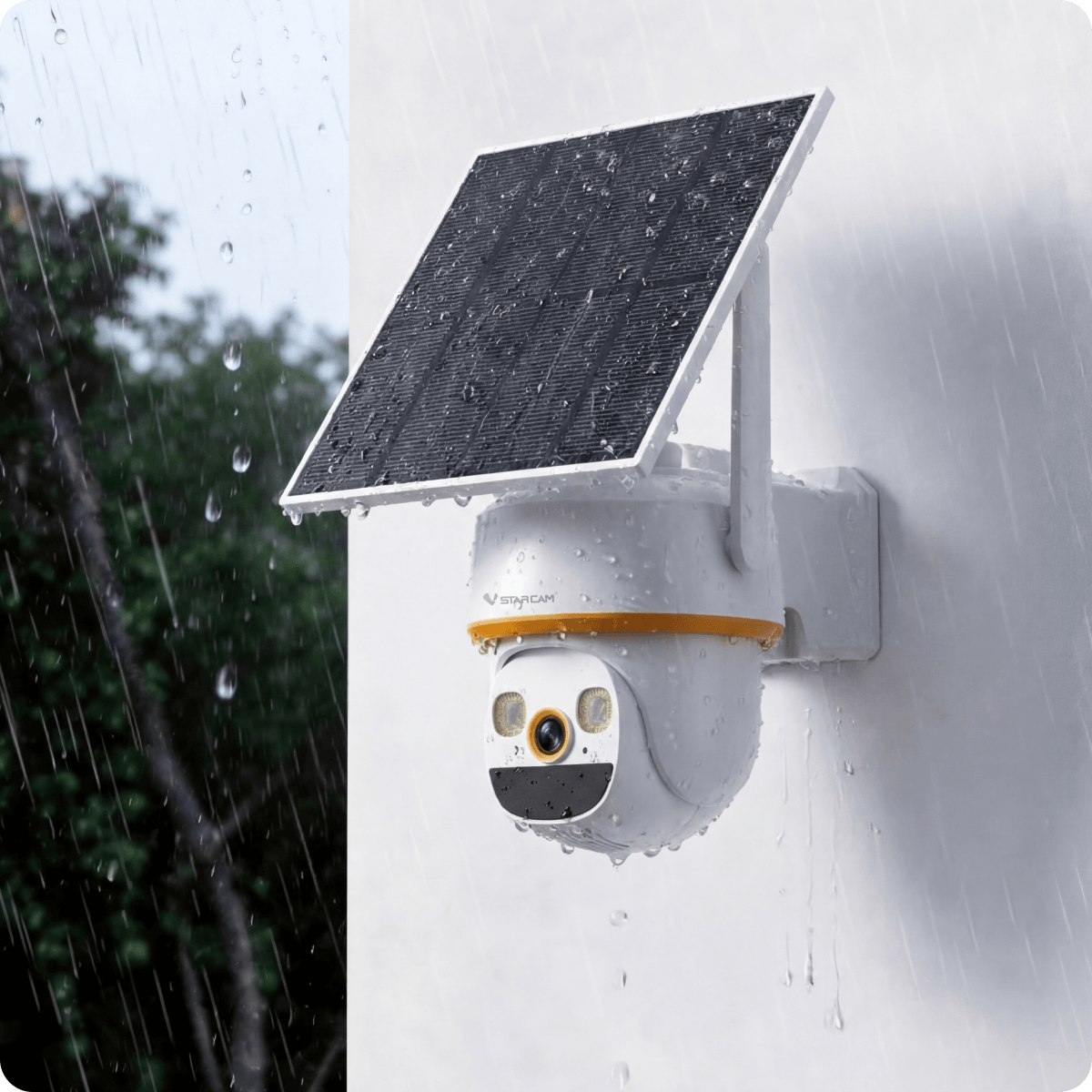
IP66 Weatherproof

IP66 Weatherproof

With an IP66-rated housing, the camera is built to resist water and dust, helping it work reliably indoors and outdoors in harsh weather conditions.

Waterproof Design
Continuous Recording

Smart Color Night Vision

In dim light, the camera defaults to high - clarity B&W night vision. When detecting human motion, it auto - switches to full - color mode for key details.

Infrared Night Vision
Full-Color Night Vision
Smart Color Night VisionSmart Color Night Vision
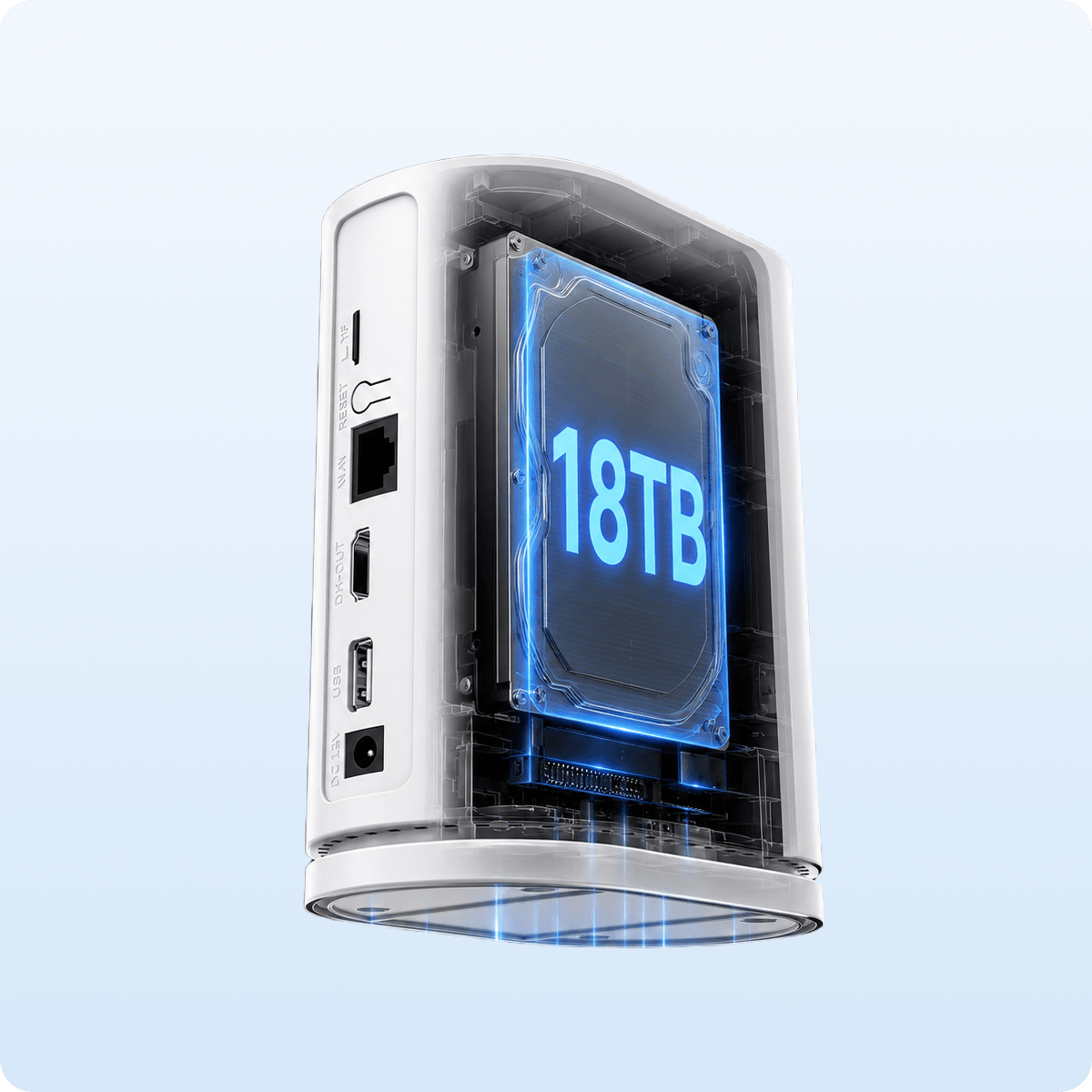
SATA Hard Drive Storage

SATA Hard Drive Storage

Equipped with 1 SATA interface, the device
supports SATA hard drives with up to 18TB capacity
for large local video storage.

Dual Storage Local + Cloud

Local and cloud backups minimize data loss risk. Advanced encryption and access control keep your privacy protected.
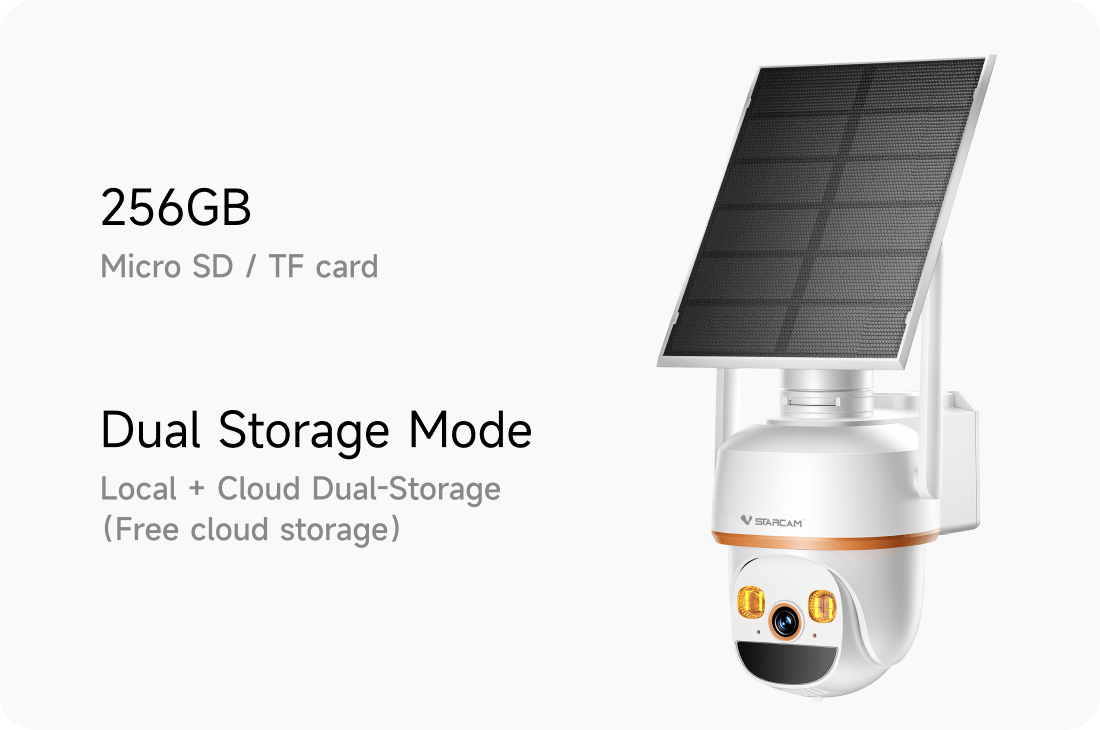
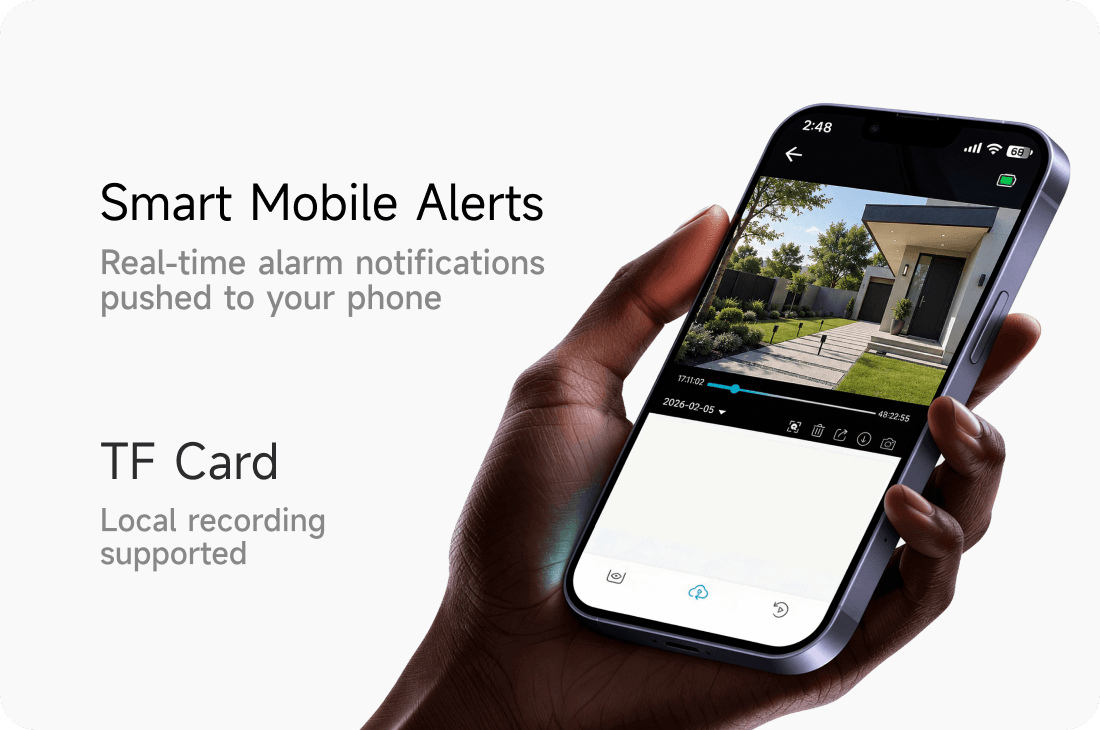
Dual Storage Local + Cloud

Specifications

Specifications
MODEL
E30-4
VIDEO & VISION

3MP camera with 1/3.27-inch CMOS sensor, 3.6mm F2.0 fixed-focus lens, H.264 dual-stream video, main stream 1296P@15fps and sub-stream 360P@15fps. Infrared night vision with 10m supplement light range and auto/manual day-night switching. NVR supports H.265/H.264 decoding, up to 6-channel 8MP camera input, 8MP/5MP/3MP/1080P/720P recording, and HDMI output up to 4K@30Hz.

SMART DETECTION

Intelligent motion detection sends push alerts and triggers automatic recording when unusual activity is detected. PIR human detection range: 10m. Recording modes include alarm-triggered, motion detection, and scheduled recording.

POWER & STORAGE

Camera: built-in 8000mAh battery, 6000mAh optional, DC 5V/1A via USB power port, MicroSD up to 256GB, and encrypted cloud storage. NVR: 12V/2A DC power, power consumption ≤18W without HDD, one SATA interface up to 18TB, MicroSD up to 512GB, and USB flash drive backup.

CONNECTIVITY & CONTROL

Supports mobile app remote monitoring, live view, playback, one-click setup, HDMI local display, and two-way audio through the camera. PTZ camera movement range: pan 330°, tilt 90°.

DURABILITY & BUILD

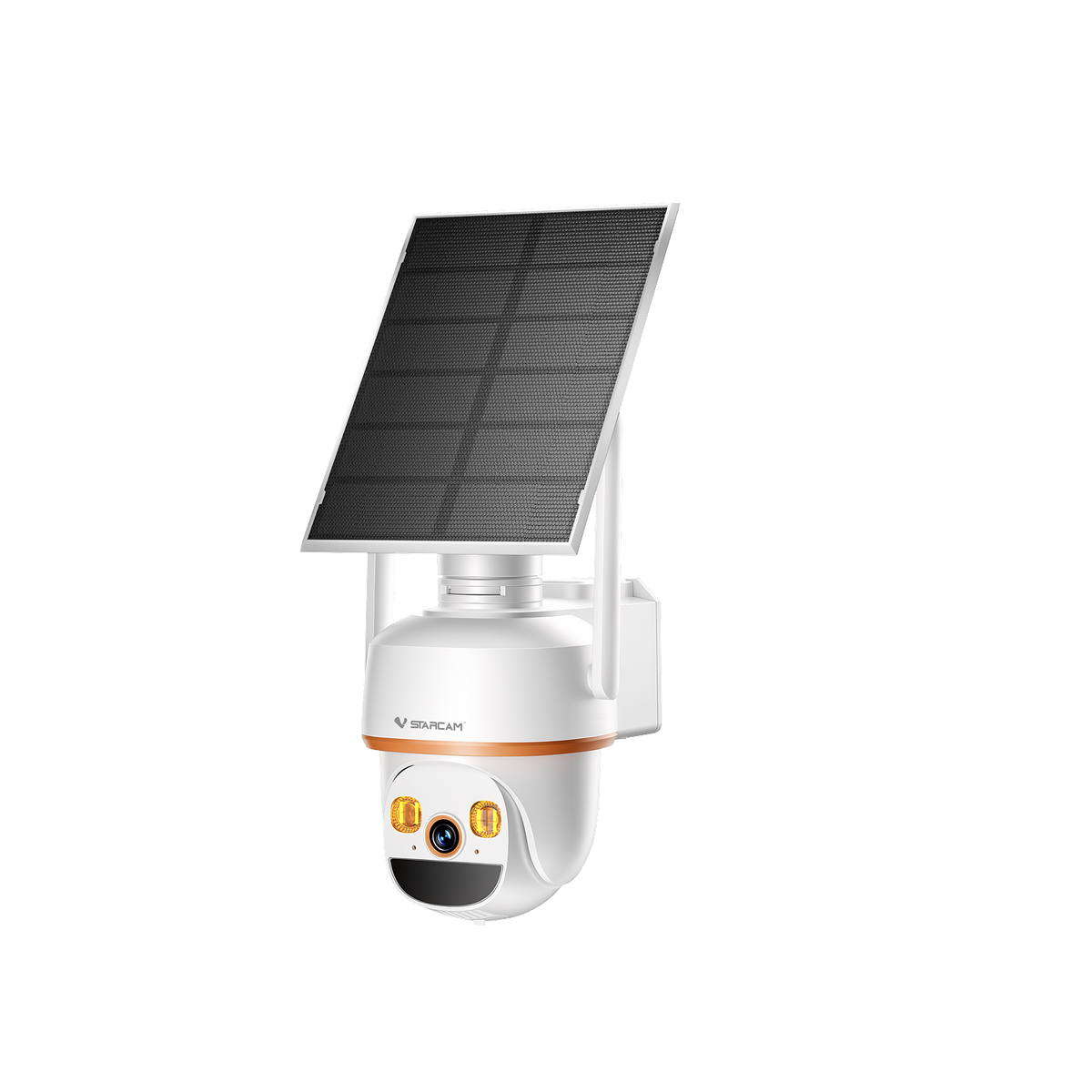
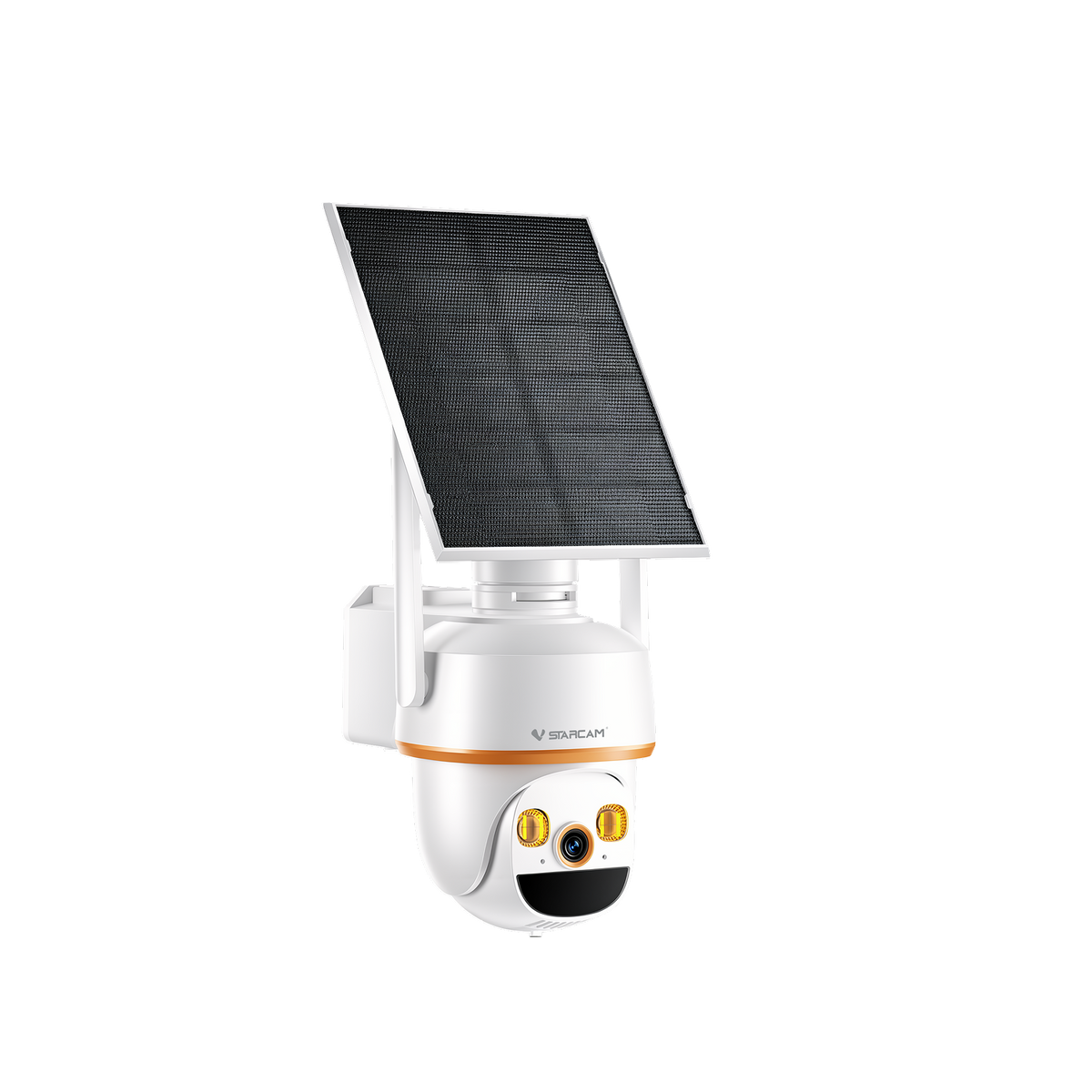
Camera: plastic dome camera suitable for indoor and outdoor use, 164x144x115mm. NVR: operating temperature -10°C to +55°C, 10% to 90% RH non-condensing, ≤322g without HDD, 115x75x148mm.

ACCESSORIES

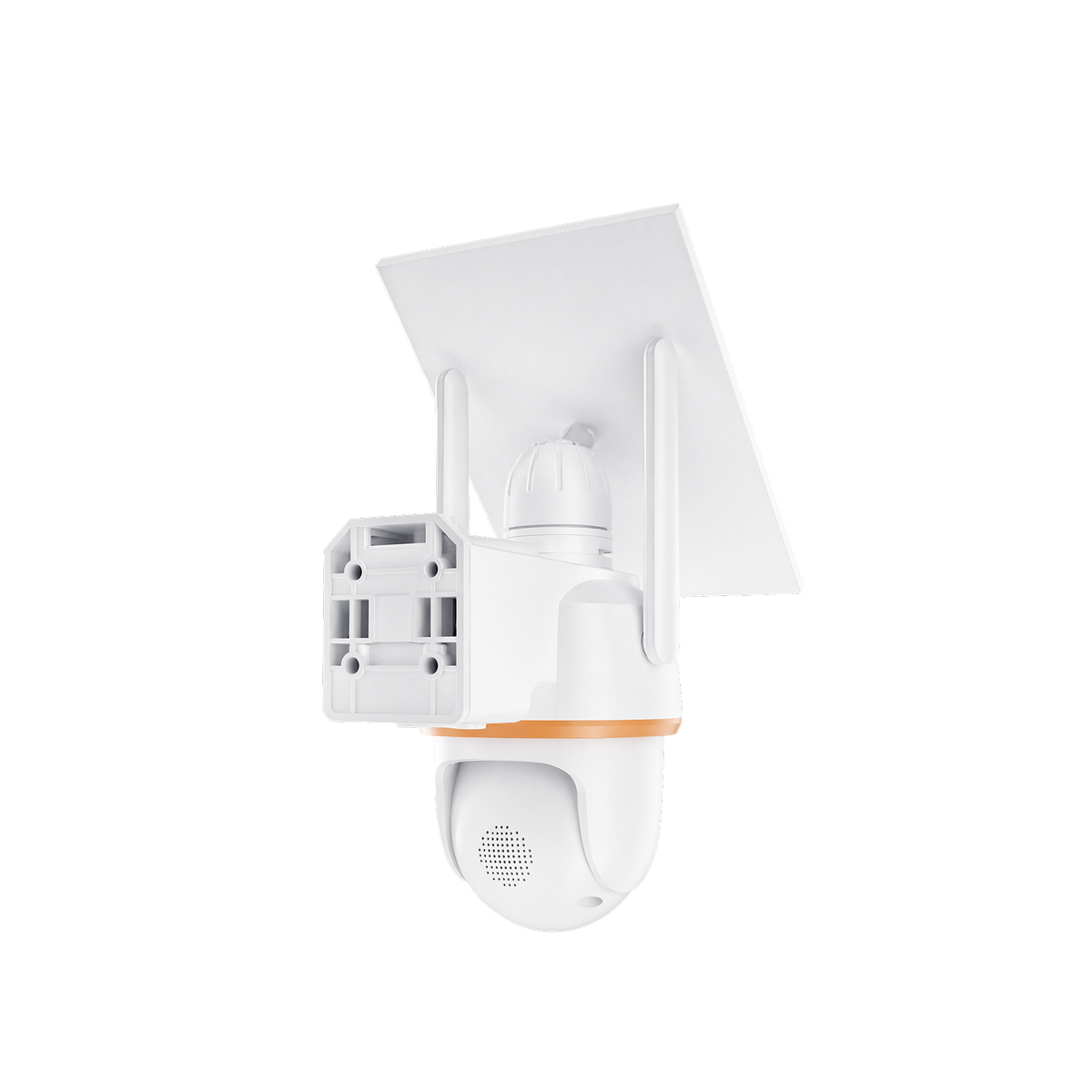
Kit includes multiple cameras, one NVR host, bracket, and required accessories. NVR supports USB backup and SATA HDD expansion.

FAQ

Want to contact us?

Please contact our staff by phone:0016468142996

WiFi Camera Offline

The camera displays “Offline” on the App, indicating that it is currently unable to connect to the network normally. If you are using the WiFi to add the camera, please refer to the below steps to troubleshoot the problem:
Is the router functioning properly1. Connect the phone to the router WiFi, turn off mobile data, and check if the phone can access the internet normally. If you are unable to access the internet, please contact your network operator for assistance.
2. If the phone can access the router WiFi, but cannot assess the internet, please restart the router.
Is the WiFi with full signal
Put your phone next to the camera and check if the WiFi signal on the phone is full. If the signal is weak, it is recommended to adjust the distance between the router and the camera and keep it within 5 meters.
Is the camera working properly
1.If there is a TF card in the camera, please power off the camera and take the card out and check it;
2.Replace with another power supply of the same specification and check again.
3.Enter the router management page and check if any devices with names starting with "@MC"/"@IPC" are connected. If not, power off, restart or reset the camera to add it again.

4G Camera Offline

Please check the following points in order:
1.If you are using the sim card provided by the camera seller, Click 4G refill to check the SIM card status. If there is no data left, please select the data plan to refill.
2.If you are using the sim card by yourself, please manually restart the camera and see if there is "network connection succeeded"voice or stable blue light.
3. If it prompts “Unsupported SIM card”, please contact "human".
If there is enough data for the SIM card, please check the parts of the camera.
1. If there is a TF card in the camera. Please power off the camera first and remove the TF card. If the camera is working properly after the removal of TF card, it is likely that the TF card is abnormal and has affected the camera. It is recommended to remove or replace the TF card.
2.The power adapter is abnormal. If there is a spare power adapter of the same specification, replace it and try. If after the replacement, the camera works, it is likely that the adapter is faulty.
3.If the camera still shows offline after the above checks, please manualy restart the camera until getting "network connection succeeded"voice or stable blue light , then try adding it again.


What should I do if the 4G camera fails to be added?

Suggestion:
1. Check whether the card has sufficient cellular data, check whether the card status can be used normally.
2. Reset the device and add it again; Pay attention to listen to the voice broadcast of the device when it is turned on, whether it can broadcast [network connection successful] or [stable blue light on].
3. If the device cannot be turned on and cannot broadcast [Network Connection Successful] or the blue light keep flashing quickly, There may be the following issues:
(1)There is no sufficient cellular data on the SIM card
(2)the SIM card status is abnormal
(3)the SIM card cannot access the Internet normally;
Please try to change the SIM card;

How to Add Devices on App

For WIFI Camera
1.After the camera is powered on, wait seconds and there is a voice prompt “Please use the App for WiFi configuration”or indicator light flashing. If there is no such thing, press and hold the reset button for more than 5-10 seconds until there is a "beep" or "reset successful" sound and then the camera will say "Please use the App for WiFi configuration" with indicator light flashing,
2.Open o-kam pro and click “ + ”icon in the upper right corner to scan the QR code on the camera, or manually select "wireless camera" to connect.
Tips when conecting:
1.Enter the WiFi password for the camera connection (Case sensitive). Please check whether the device supports 5G WiFi.
2.Let the lens face the QR code on the App. Ensure that the QR code is 15-20cm away from the lens when scanning, and try scanning from multi-angles.
3.If the scanning is timed out, or there is no pop-ups to add a device, please try AP hotspot configuration.
•Hotspot Configuration
1. After confirming that the app's network permissions are enabled, reset the camera. Once the camera reset is successful, go to the Wi-Fi list page on your phone and find the camera hotspot starting with @MC/IPC. Confirm camera hotspot connected.
2. Return to O-KAM Pro, enter the device settings page, select the Wi-Fi network page, and switch it to home wifi.
Note: When connecting the device to a hotspots starting with @MC/@IPC, the system pops up a window “cannot connect to the internet. Looks like there are other networks available. Switch networks?” Please choose “No thanks”. Keep using this hotspots of the device. If you mistakenly click Switch, delete it from the saved network.
•4G Camera
After restarting or resetting the camera, first confirm that the camera announces 'Network connection successful' or that the stable blue indicator light is on steadily. Then open the app, scan the camera's QR code directly, or click the '4G Camera' option.Let the lens face the QR code on the App; Ensure that the QR code is 15-20cm away from the lens when scanning, and you can try scanning from multi-angles. When the pop-up window to bind device appears, click Bind.
Notes:
1.If your first attempt to add the camera fails, please remember to reset it before your second attempt.

The Live feed of 4G Camera Is Stuck

1.Check the 4G signal strength and ensure that the signal has 3 bars.
2.Check if there is signal interference and try moving the camera to a place with strong 4G signal.
3.Try to switch image quality and clarity; If your image is UHD, it is recommended to switch to HD or SD.