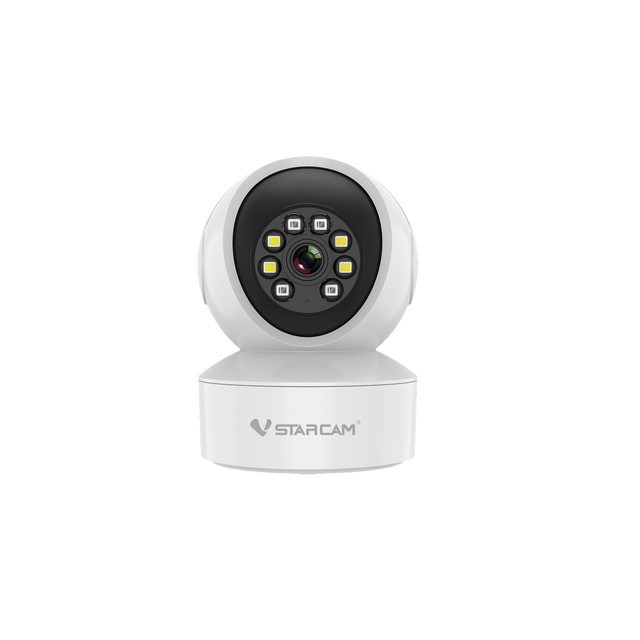
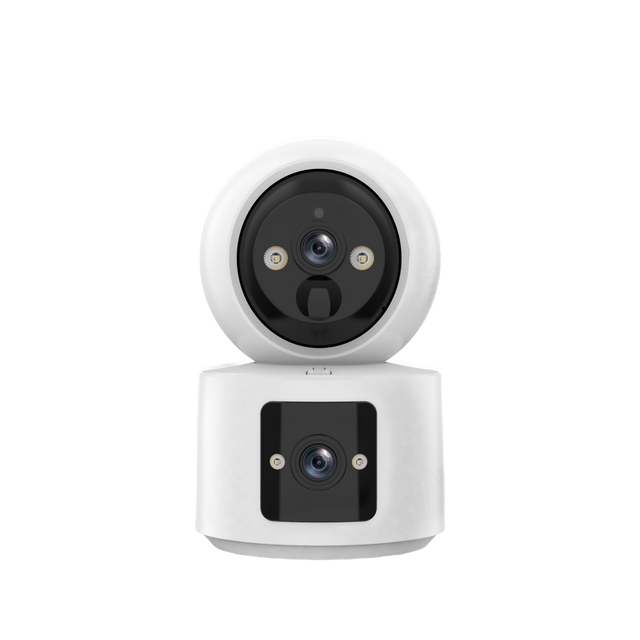


Vstarcam
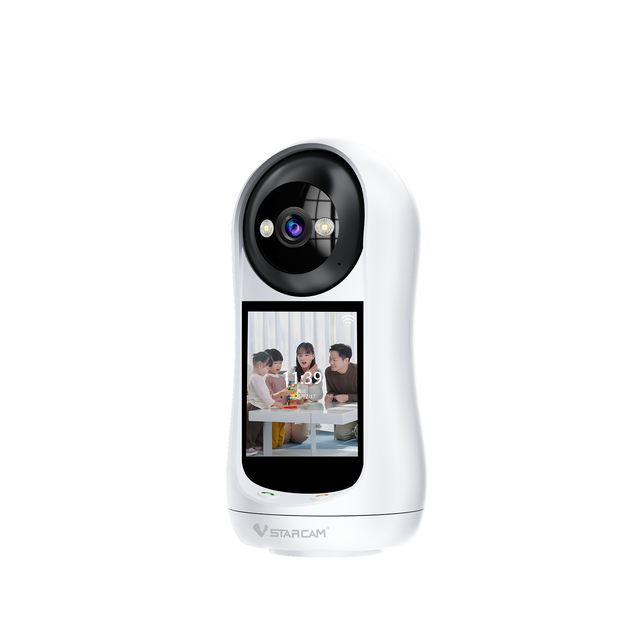
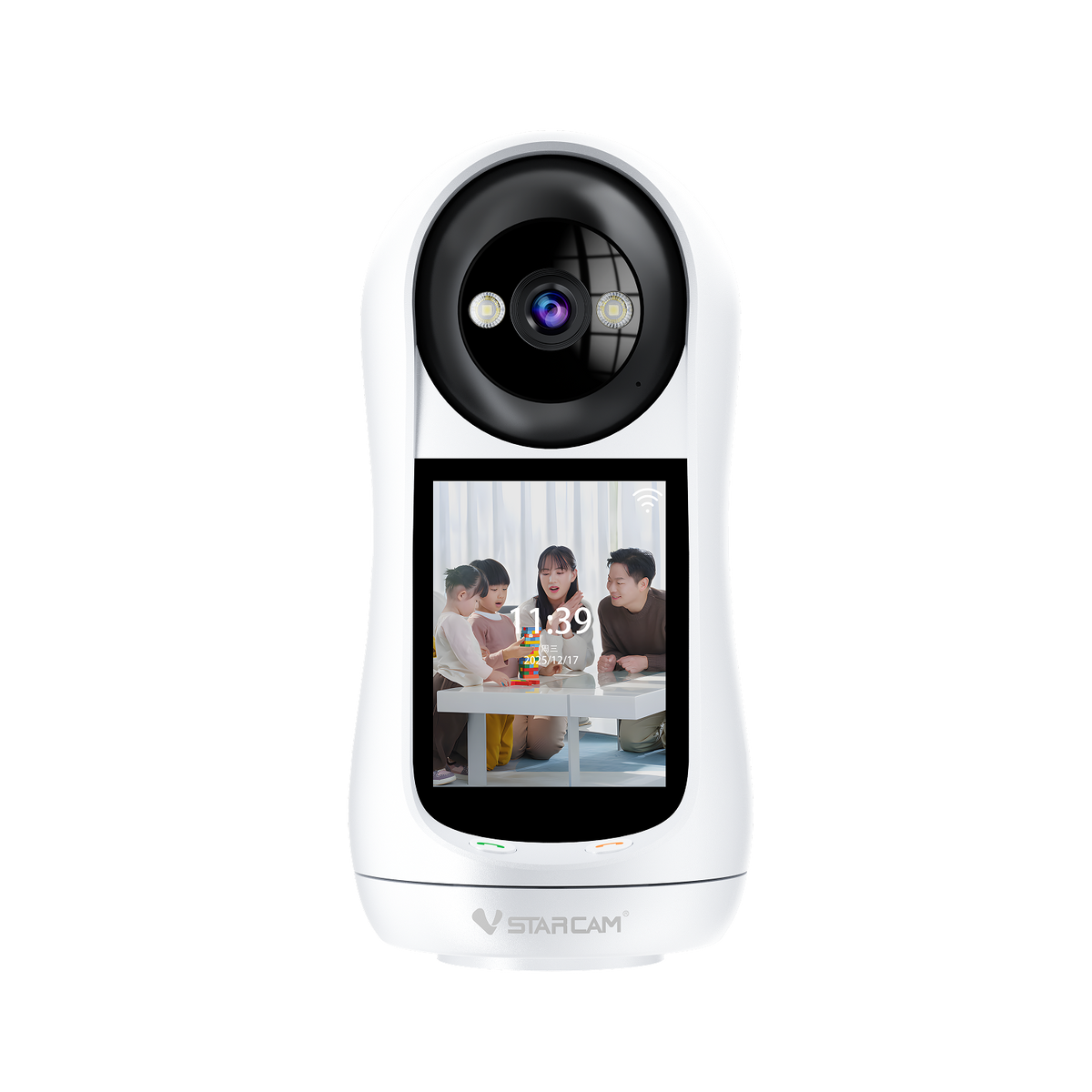
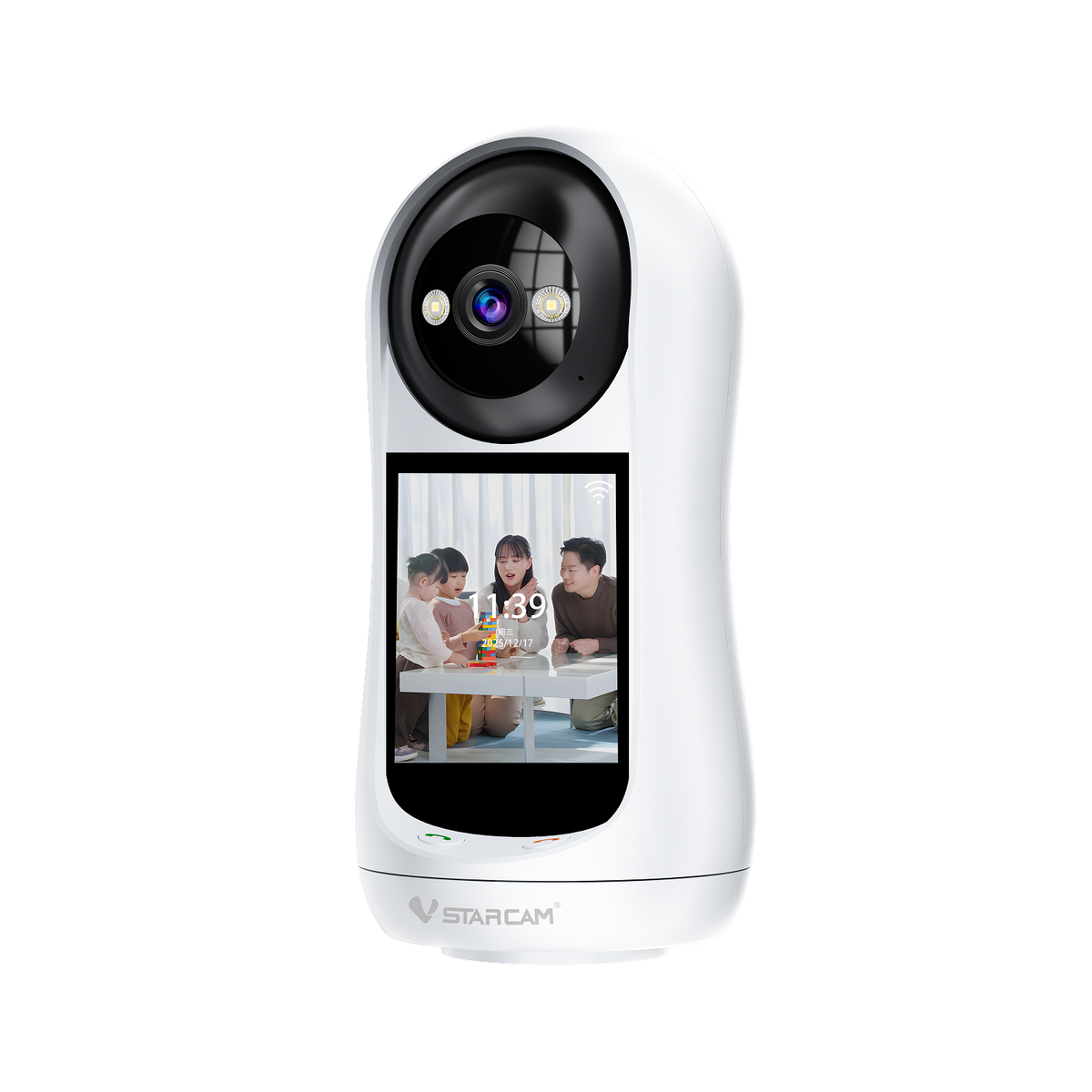
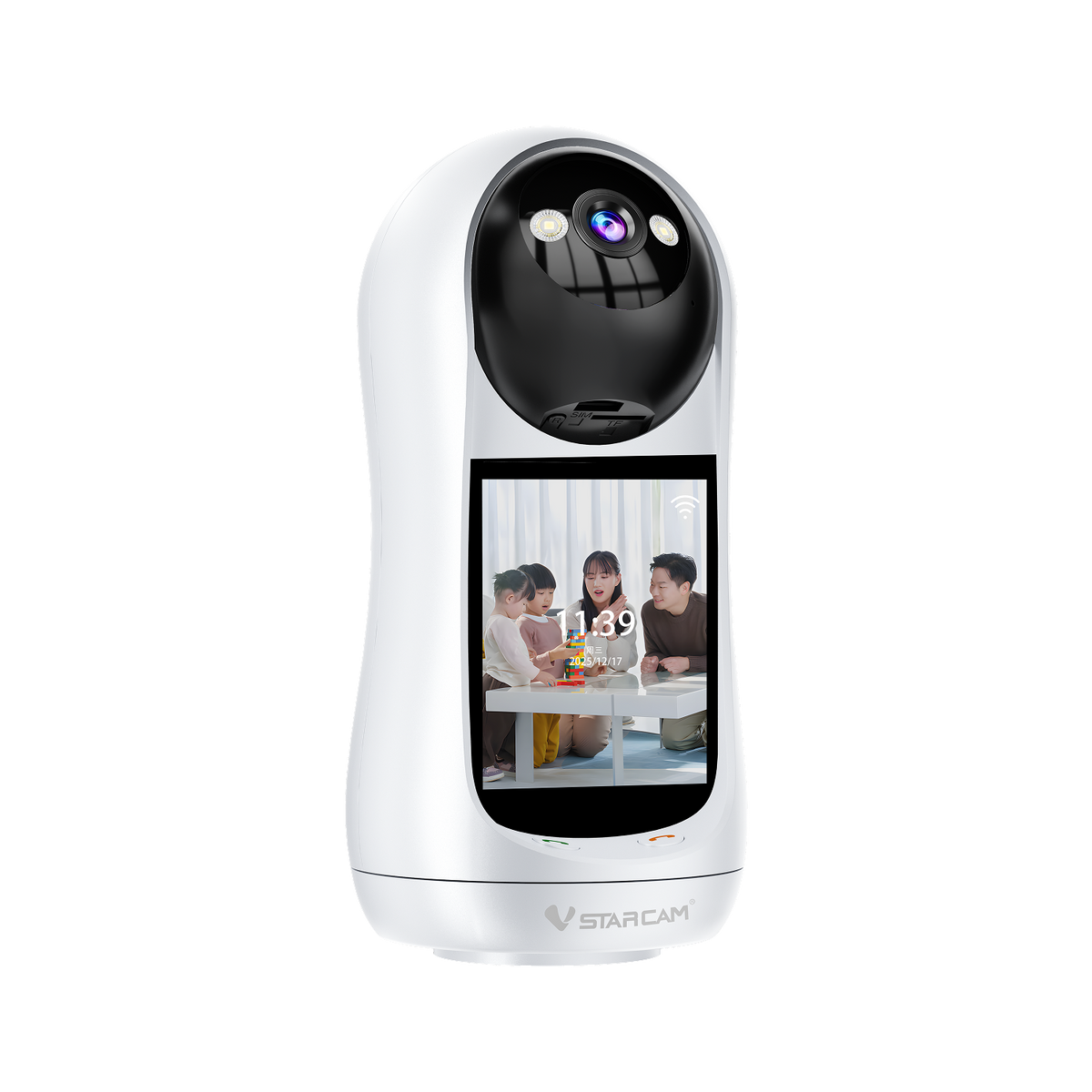
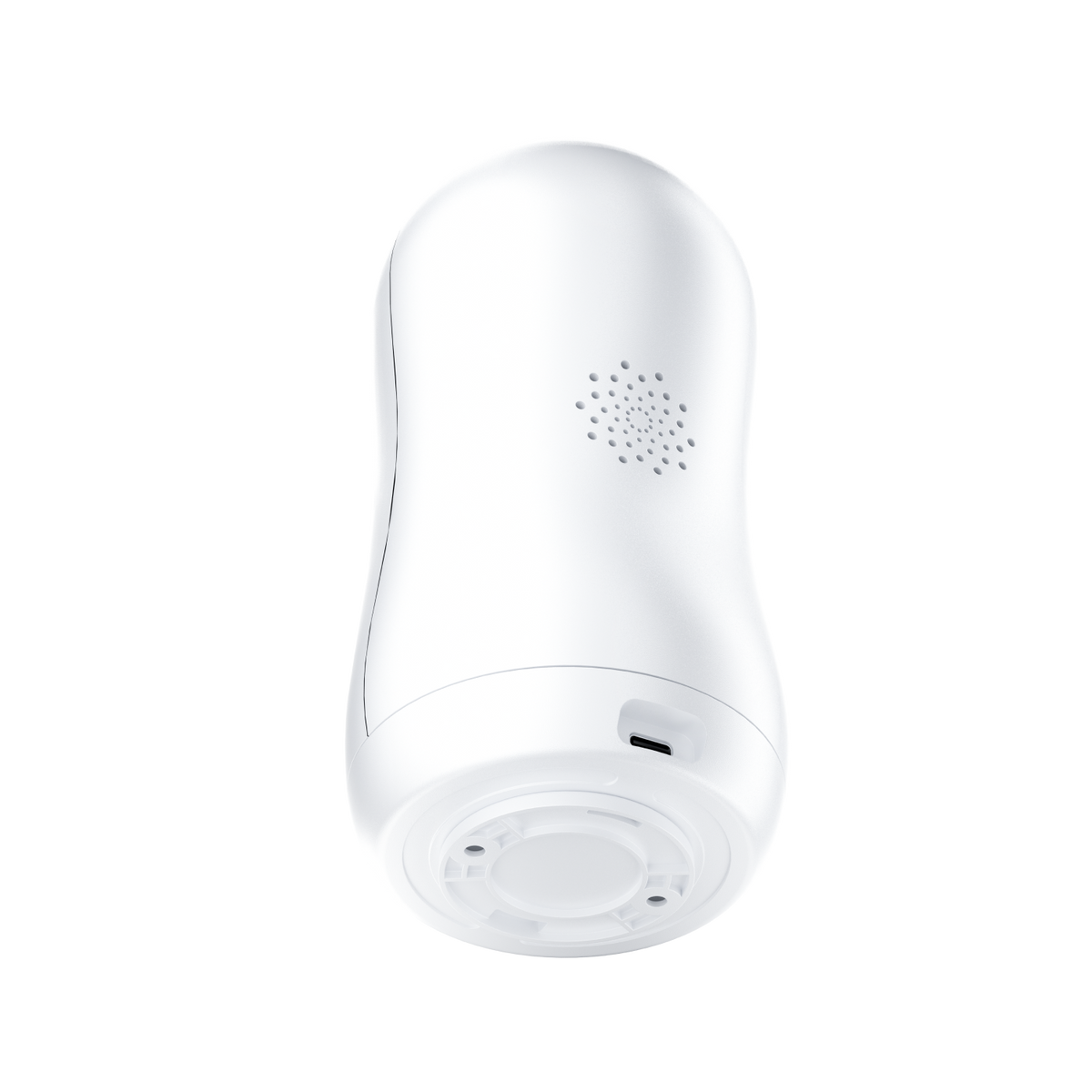
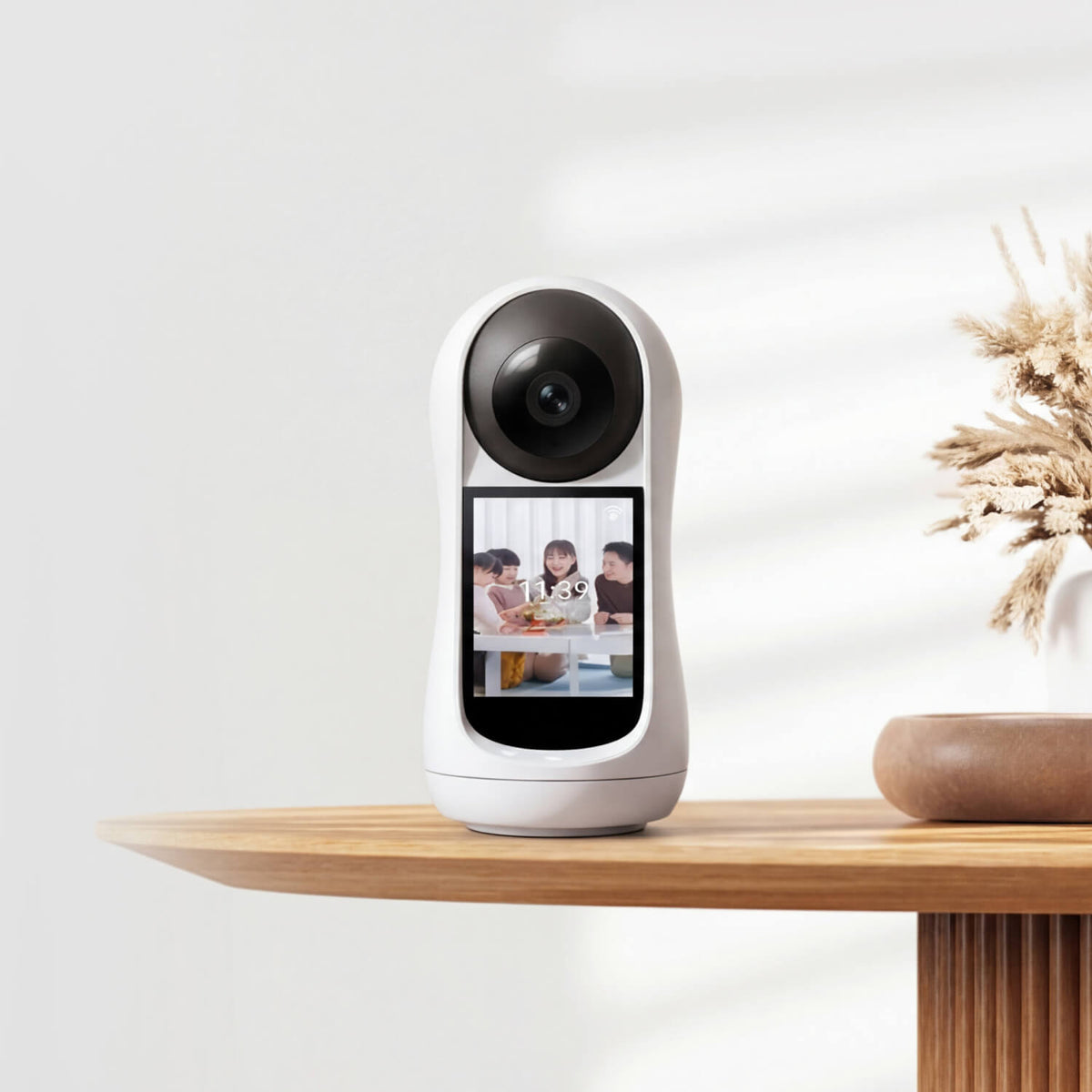
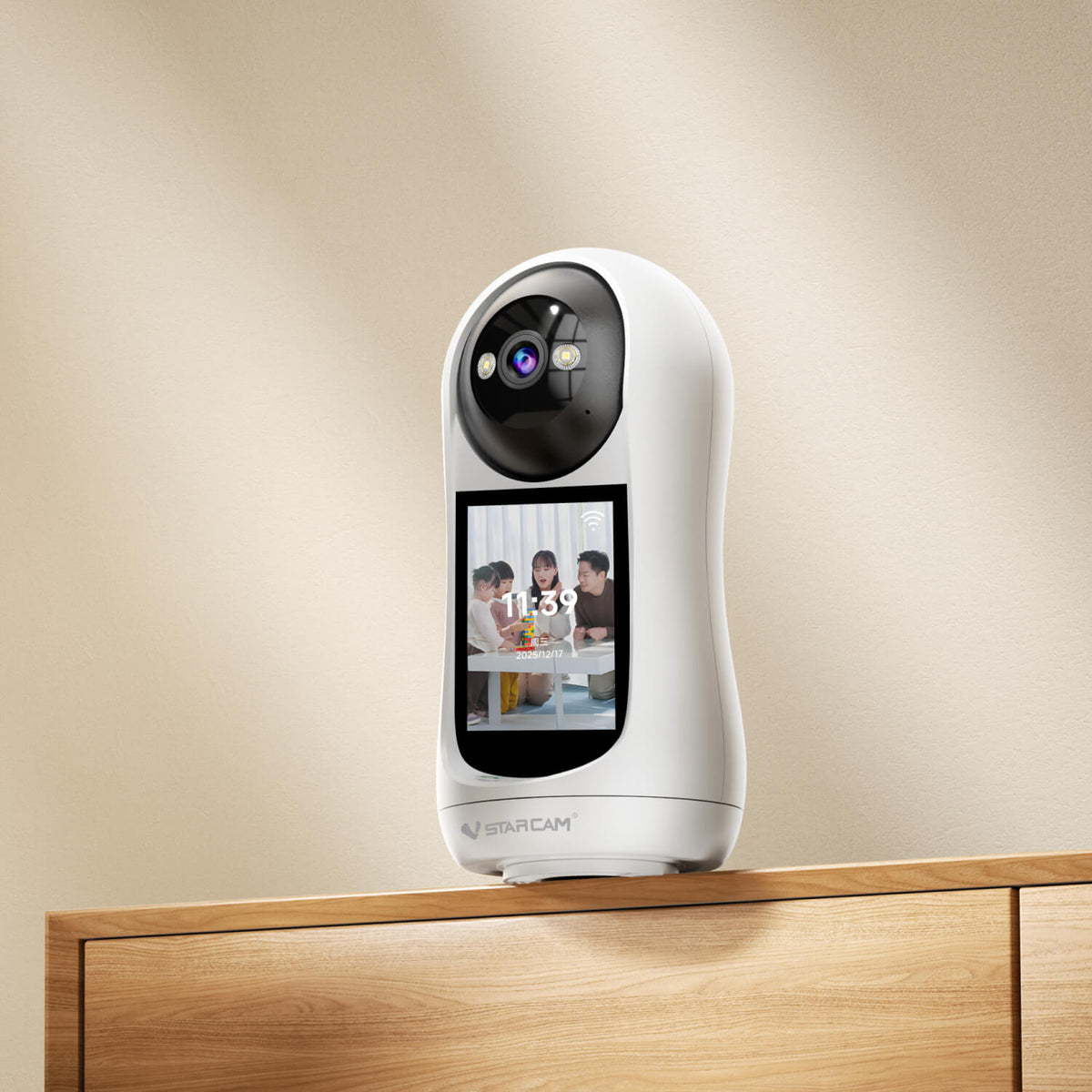
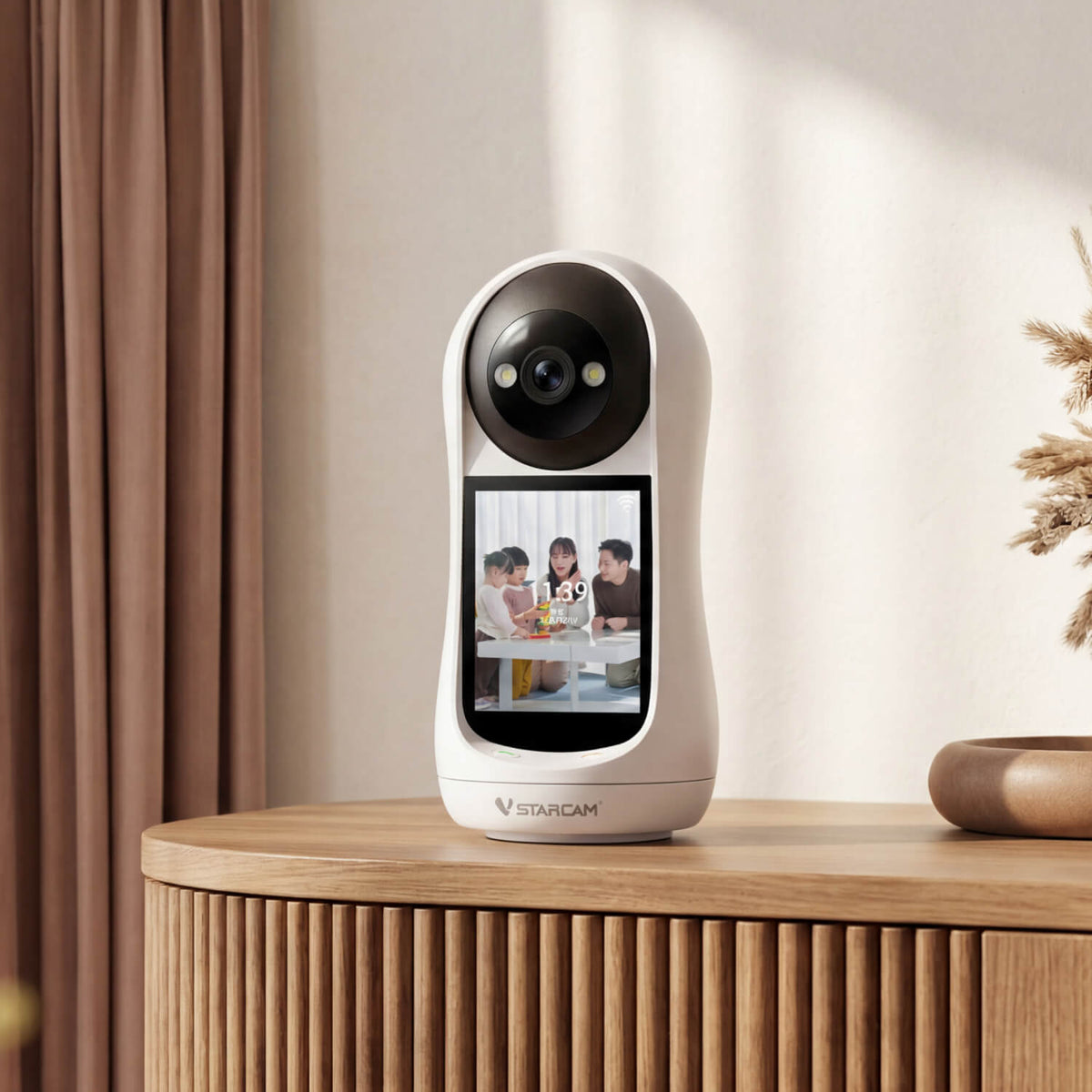
CV332 | 2MP Smart Indoor Camera - 2.8" Screen & One-Touch Video Call
$89.99Sold out
Quantity
Free shipping on qualifying orders with real-time tracking.
We offer a 30-day money-back guarantee for a worry-free purchase.
1-year limited warranty included on all solar-powered security systems.
Why Choose Indoor Security Camera CV332?
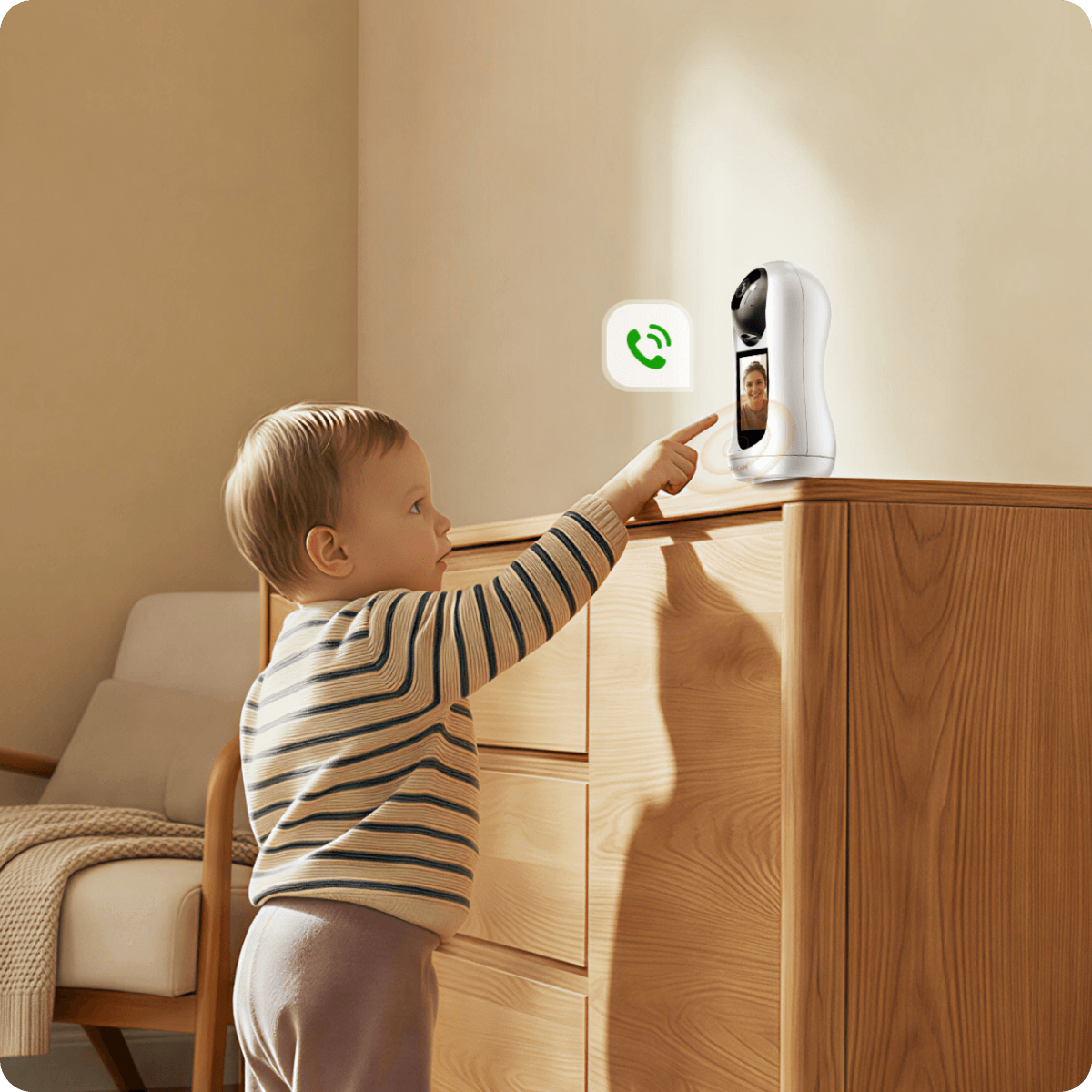
Smart Tracking
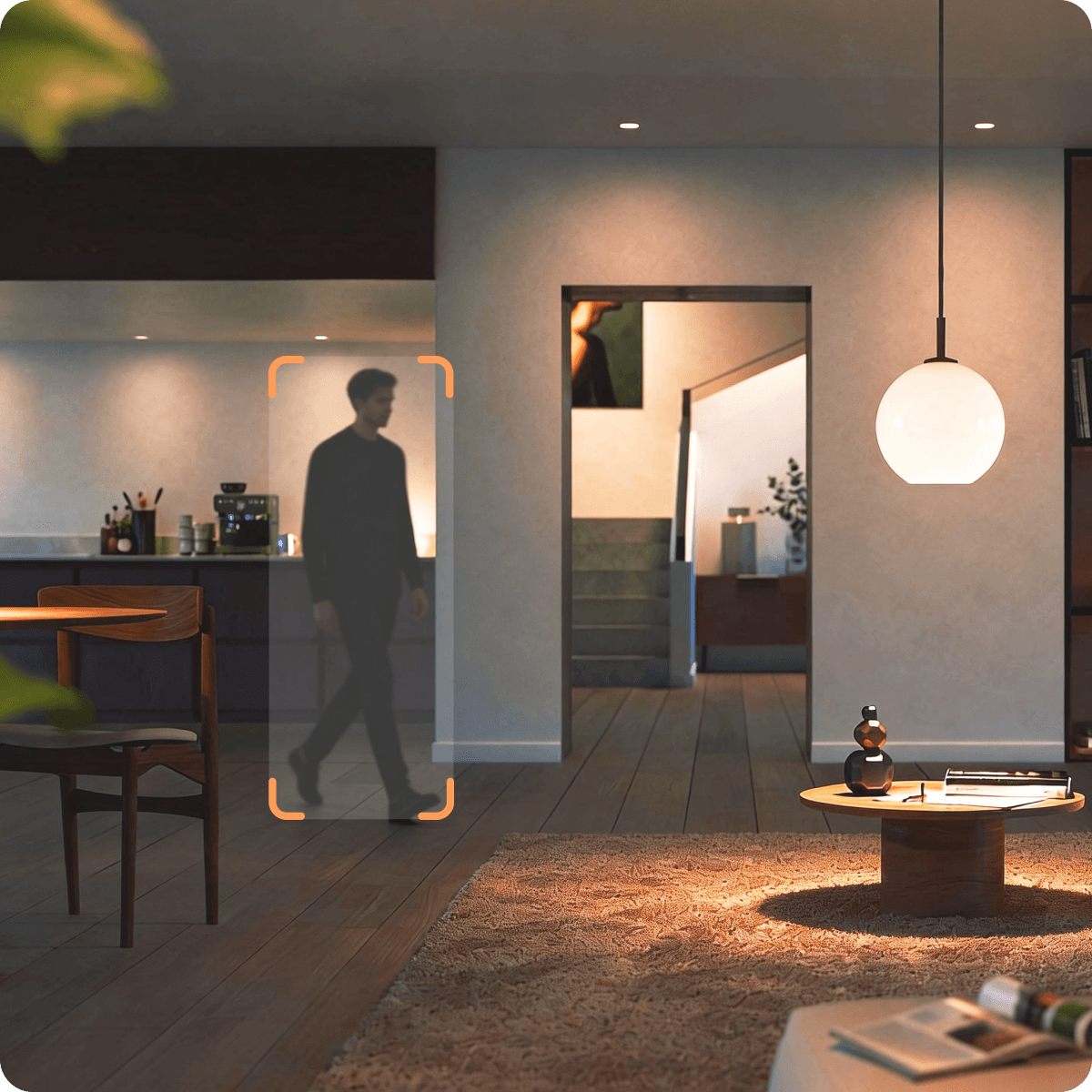
The camera intelligently detects and automatically follows human movement and send real-
time alerts to your smartphone,
allowing you to instantly check in on your children at play or monitor when an elderly person gets up.

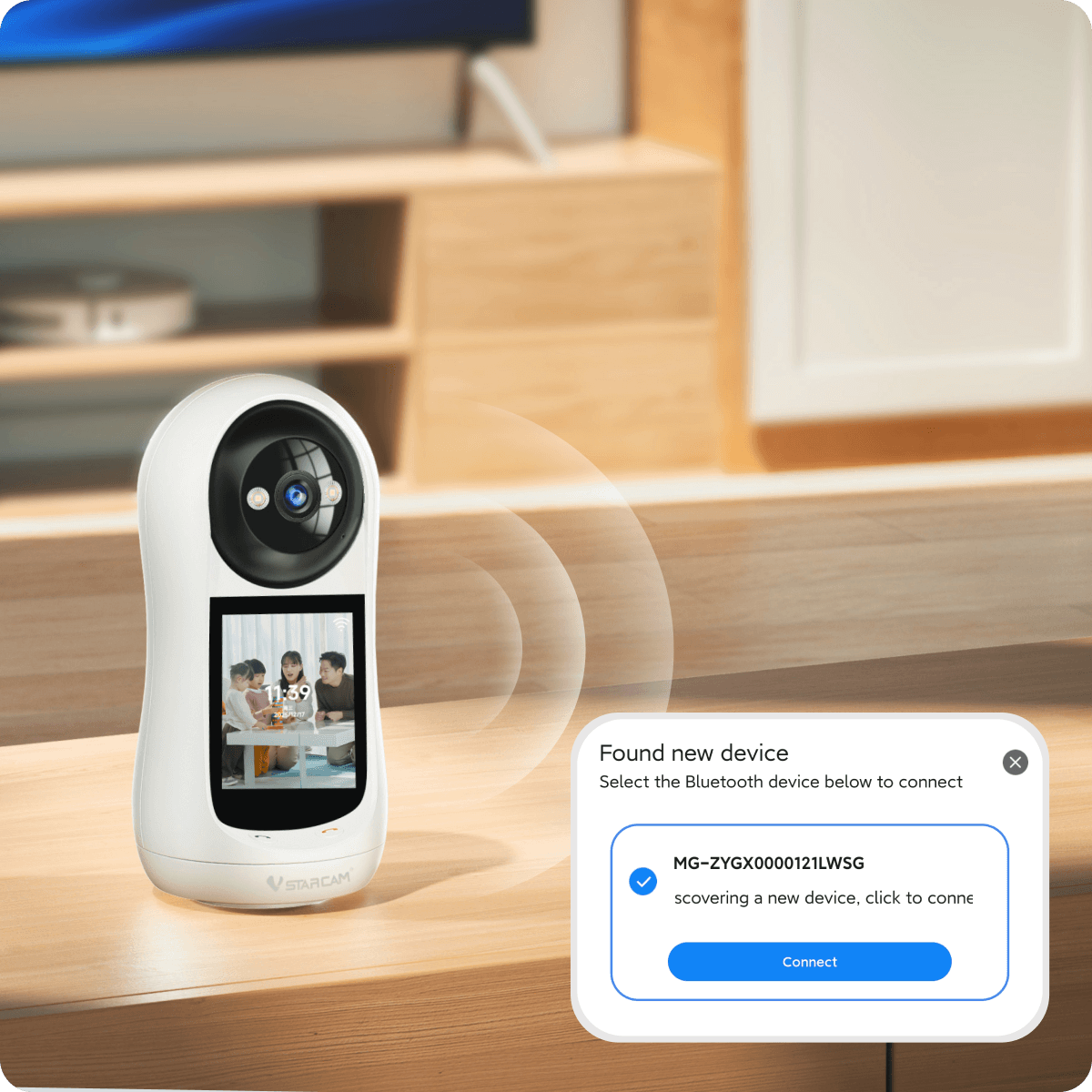
Smart pairing Effortless setup
Just tap your phone to connect. No app config
uration needed.
Anyone can set it up in minutes.
Al Human Detection
With built - in smart algorithms, it can accurately detect human movement, push alarm messages to your phone. Once a person is recognized, the gimbal automatically rotates to track their movement, keeping the monitored target centered.

Intelligent Full-Color Night Vision
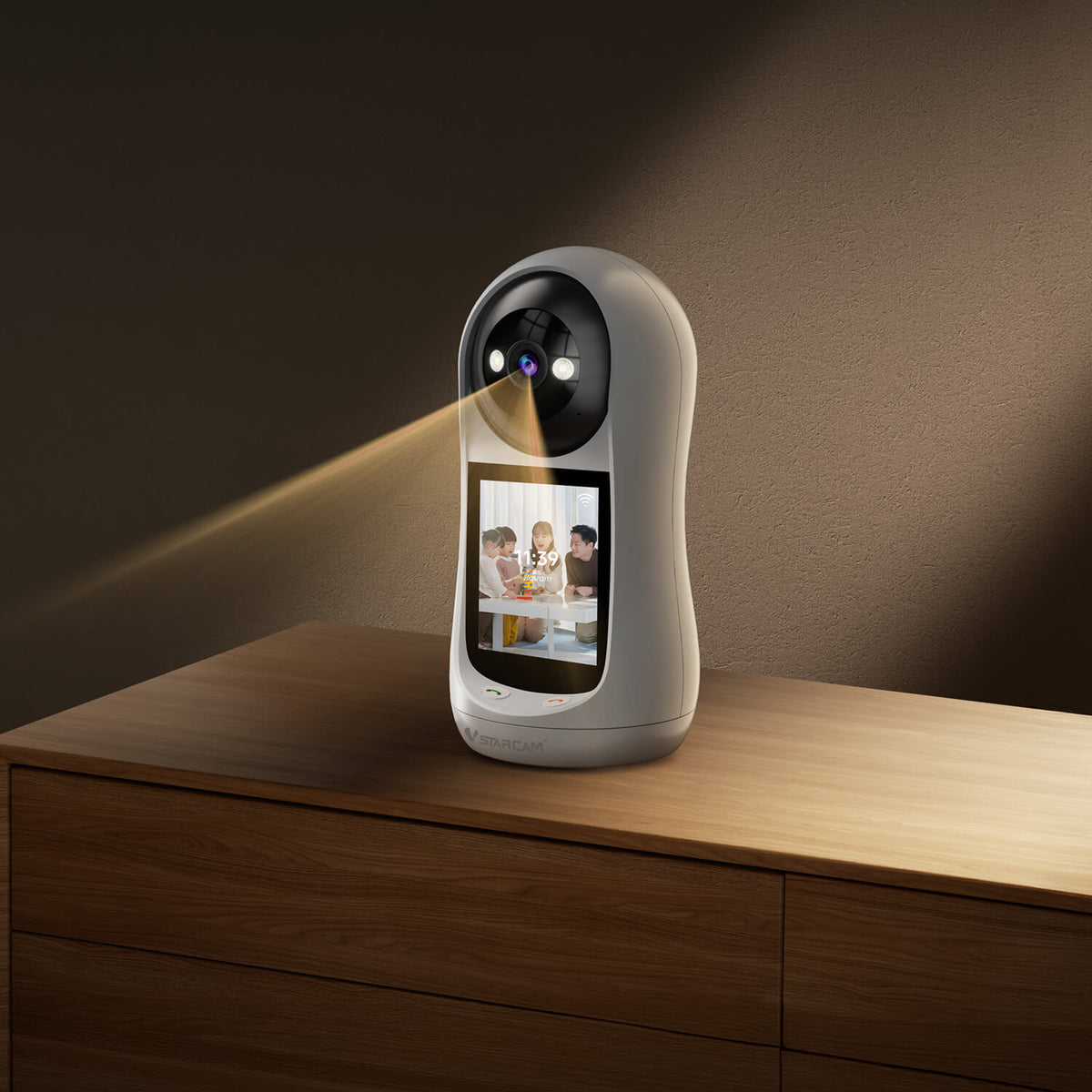
In dim light, the camera defaults to high - clarity B&W night vision. When detecting human motion, itauto - switches to full - color mode for key details.
Full-Color Night Vision
Human shape detection

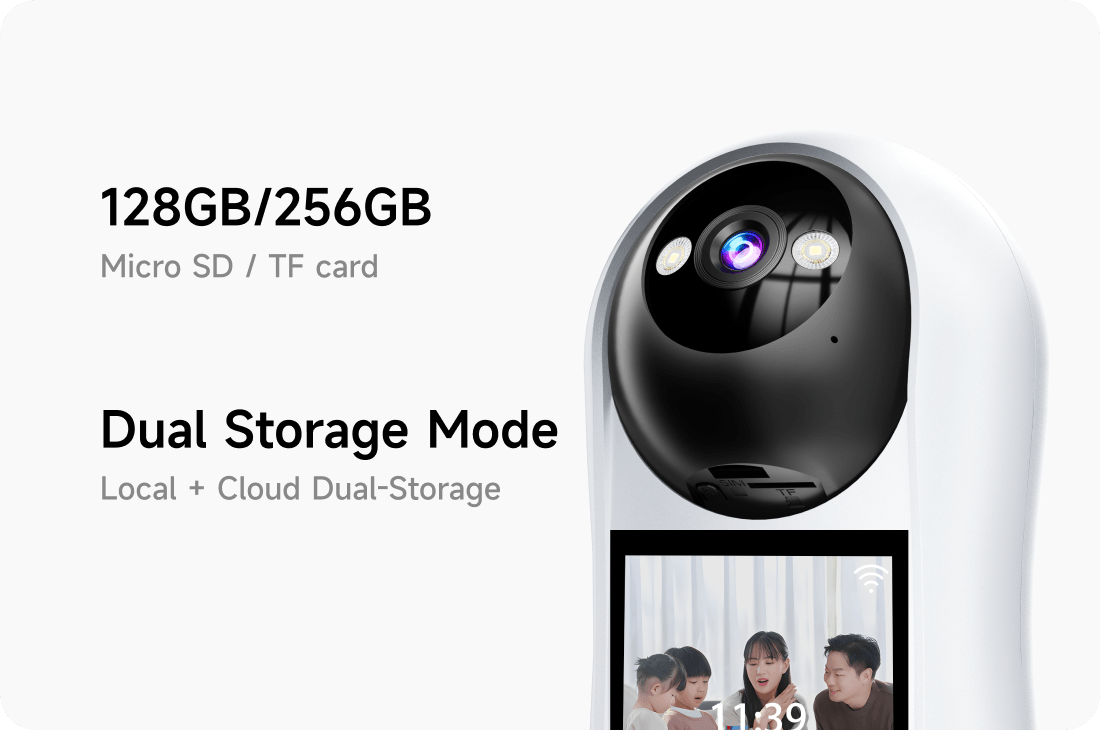
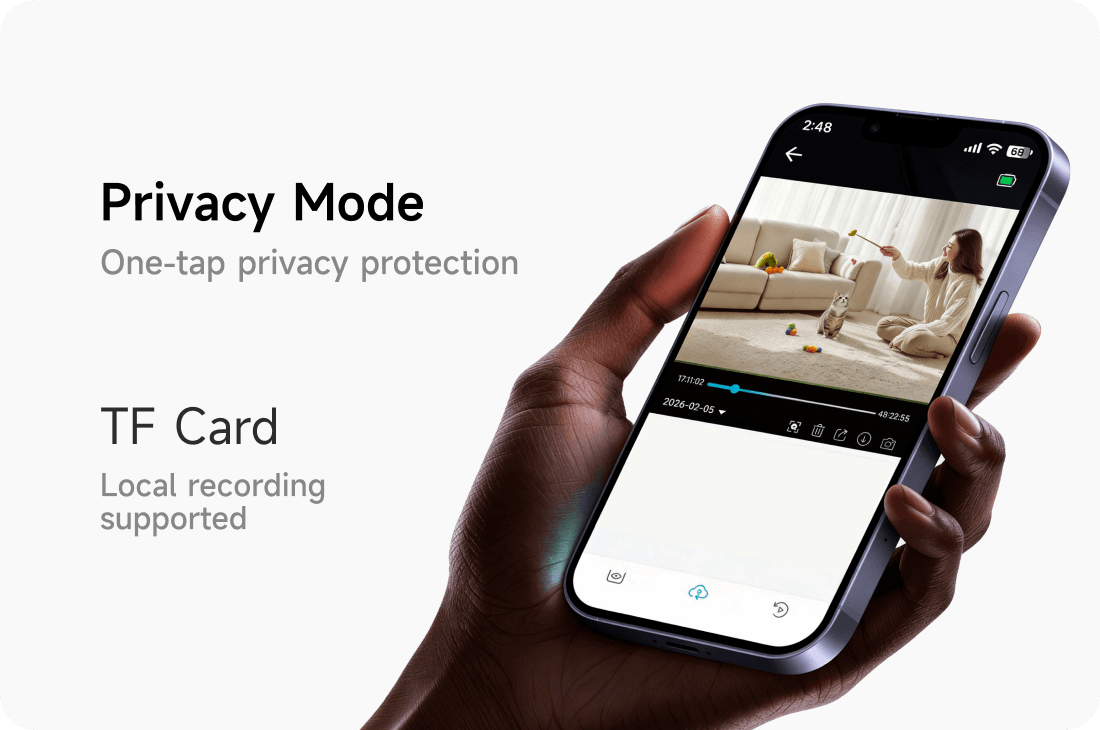
Dual Storage Local + Cloud
Local and cloud backups minimize data loss risk. Advanced encryption and access control keep your privacy protected.
Specifications
Specifications
- MODEL
- VIDEO & VISION
- SMART DETECTION
- POWER & STORAGE
- CONNECTIVITY & CONTROL
- DURABILITY & BUILD
- ACCESSORIES
- -
FAQ
Want to contact us?
Please contact our staff by phone:0016468142996
WiFi Camera Offline
The camera displays “Offline” on the App, indicating that it is currently unable to connect to the network normally. If you are using the WiFi to add the camera, please refer to the below steps to troubleshoot the problem:
Is the router functioning properly1. Connect the phone to the router WiFi, turn off mobile data, and check if the phone can access the internet normally. If you are unable to access the internet, please contact your network operator for assistance.
2. If the phone can access the router WiFi, but cannot assess the internet, please restart the router.
Is the WiFi with full signal
Put your phone next to the camera and check if the WiFi signal on the phone is full. If the signal is weak, it is recommended to adjust the distance between the router and the camera and keep it within 5 meters.
Is the camera working properly
1.If there is a TF card in the camera, please power off the camera and take the card out and check it;
2.Replace with another power supply of the same specification and check again.
3.Enter the router management page and check if any devices with names starting with "@MC"/"@IPC" are connected. If not, power off, restart or reset the camera to add it again.
4G Camera Offline
Please check the following points in order:
1.If you are using the sim card provided by the camera seller, Click 4G refill to check the SIM card status. If there is no data left, please select the data plan to refill.
2.If you are using the sim card by yourself, please manually restart the camera and see if there is "network connection succeeded"voice or stable blue light.
3. If it prompts “Unsupported SIM card”, please contact "human".
If there is enough data for the SIM card, please check the parts of the camera.
1. If there is a TF card in the camera. Please power off the camera first and remove the TF card. If the camera is working properly after the removal of TF card, it is likely that the TF card is abnormal and has affected the camera. It is recommended to remove or replace the TF card.
2.The power adapter is abnormal. If there is a spare power adapter of the same specification, replace it and try. If after the replacement, the camera works, it is likely that the adapter is faulty.
3.If the camera still shows offline after the above checks, please manualy restart the camera until getting "network connection succeeded"voice or stable blue light , then try adding it again.
What should I do if the 4G camera fails to be added?
Suggestion:
1. Check whether the card has sufficient cellular data, check whether the card status can be used normally.
2. Reset the device and add it again; Pay attention to listen to the voice broadcast of the device when it is turned on, whether it can broadcast [network connection successful] or [stable blue light on].
3. If the device cannot be turned on and cannot broadcast [Network Connection Successful] or the blue light keep flashing quickly, There may be the following issues:
(1)There is no sufficient cellular data on the SIM card
(2)the SIM card status is abnormal
(3)the SIM card cannot access the Internet normally;
Please try to change the SIM card;
How to Add Devices on App
For WIFI Camera
1.After the camera is powered on, wait seconds and there is a voice prompt “Please use the App for WiFi configuration”or indicator light flashing. If there is no such thing, press and hold the reset button for more than 5-10 seconds until there is a "beep" or "reset successful" sound and then the camera will say "Please use the App for WiFi configuration" with indicator light flashing,
2.Open o-kam pro and click “ + ”icon in the upper right corner to scan the QR code on the camera, or manually select "wireless camera" to connect.
Tips when conecting:
1.Enter the WiFi password for the camera connection (Case sensitive). Please check whether the device supports 5G WiFi.
2.Let the lens face the QR code on the App. Ensure that the QR code is 15-20cm away from the lens when scanning, and try scanning from multi-angles.
3.If the scanning is timed out, or there is no pop-ups to add a device, please try AP hotspot configuration.
•Hotspot Configuration
1. After confirming that the app's network permissions are enabled, reset the camera. Once the camera reset is successful, go to the Wi-Fi list page on your phone and find the camera hotspot starting with @MC/IPC. Confirm camera hotspot connected.
2. Return to O-KAM Pro, enter the device settings page, select the Wi-Fi network page, and switch it to home wifi.
Note: When connecting the device to a hotspots starting with @MC/@IPC, the system pops up a window “cannot connect to the internet. Looks like there are other networks available. Switch networks?” Please choose “No thanks”. Keep using this hotspots of the device. If you mistakenly click Switch, delete it from the saved network.
•4G Camera
After restarting or resetting the camera, first confirm that the camera announces 'Network connection successful' or that the stable blue indicator light is on steadily. Then open the app, scan the camera's QR code directly, or click the '4G Camera' option.Let the lens face the QR code on the App; Ensure that the QR code is 15-20cm away from the lens when scanning, and you can try scanning from multi-angles. When the pop-up window to bind device appears, click Bind.
Notes:
1.If your first attempt to add the camera fails, please remember to reset it before your second attempt.
The Live feed of 4G Camera Is Stuck
1.Check the 4G signal strength and ensure that the signal has 3 bars.
2.Check if there is signal interference and try moving the camera to a place with strong 4G signal.
3.Try to switch image quality and clarity; If your image is UHD, it is recommended to switch to HD or SD.